Task
Task Overview
A Task is a series of events: a collection of related activities to be completed over a given period and within particular constraints. You can create and mange all Tasks, their details and progress by clicking on Work -> Task in the left sidebar menu.
Task List
The Task list displays all the Task and their essential information such as the Task name, project, due date, assigned to, and status.
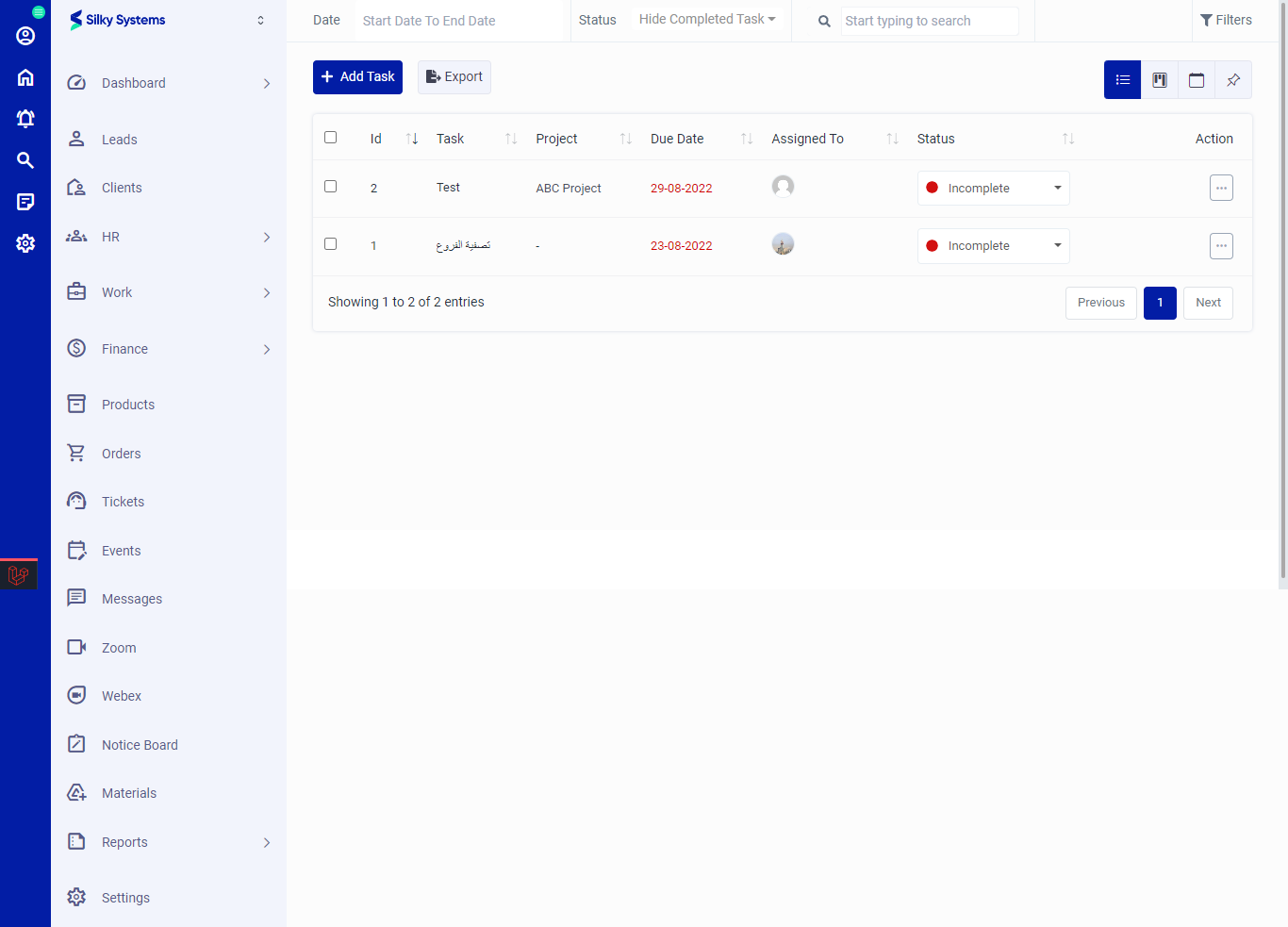 Figure.01 Task List
Export
You can export the list of Tasks by clicking on the Export button.
Filters
The CRM System lets you filter the Task records based on various factors such as date, and type. You can access more filters by clicking on Filters.
Action Column
Click on the three vertical dots to access more options in the Action column in table view. You can perform the usual View, Edit or Delete operations.
 Figure.01 Contract List
Add Task
To create a new Task, click on Add Task. Fill in all the required details. Click save when you are done.
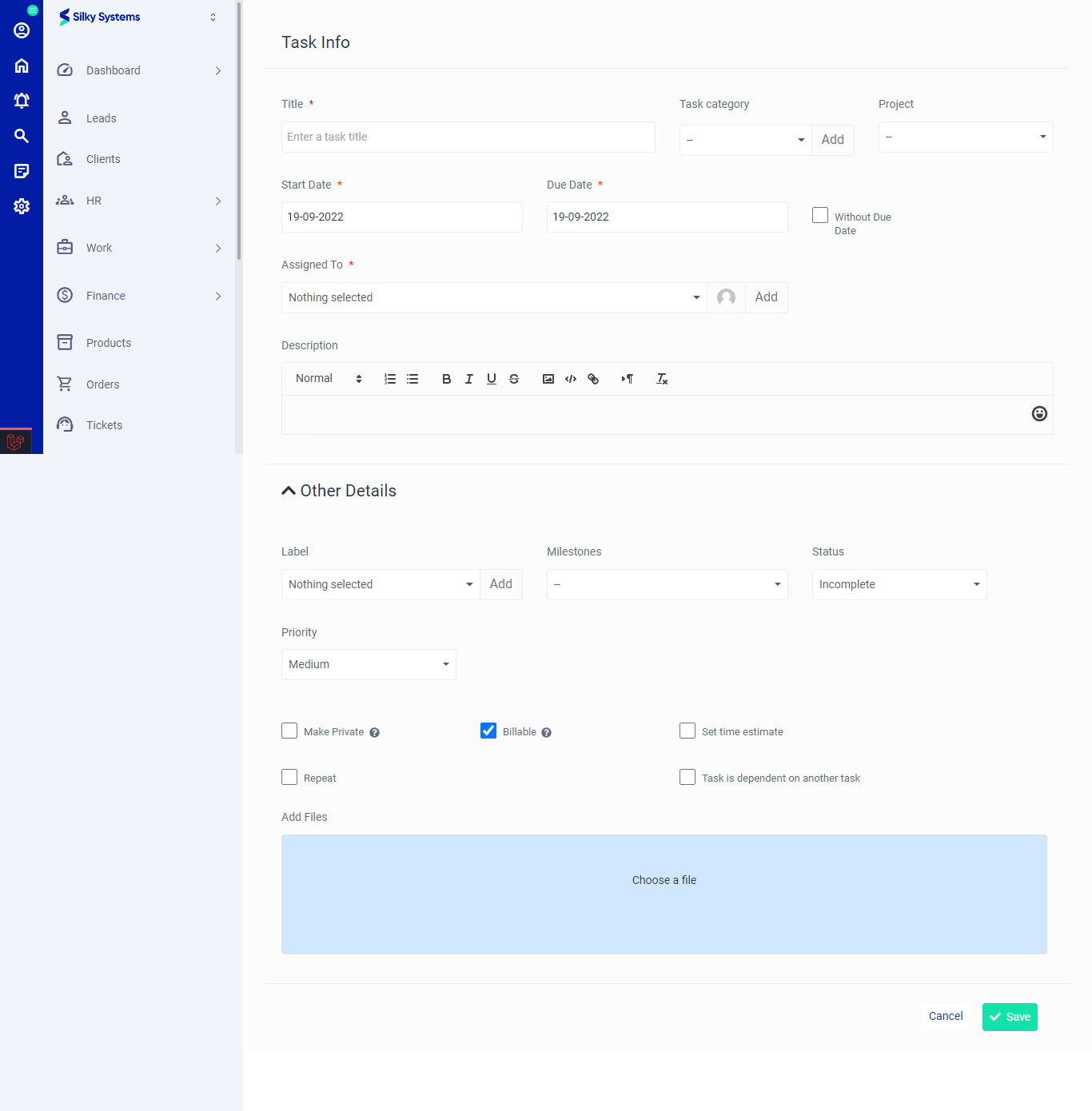 Figure.04 Add Task
Edit Task
You can edit all the Task details by clicking on the edit option under the Action Column.
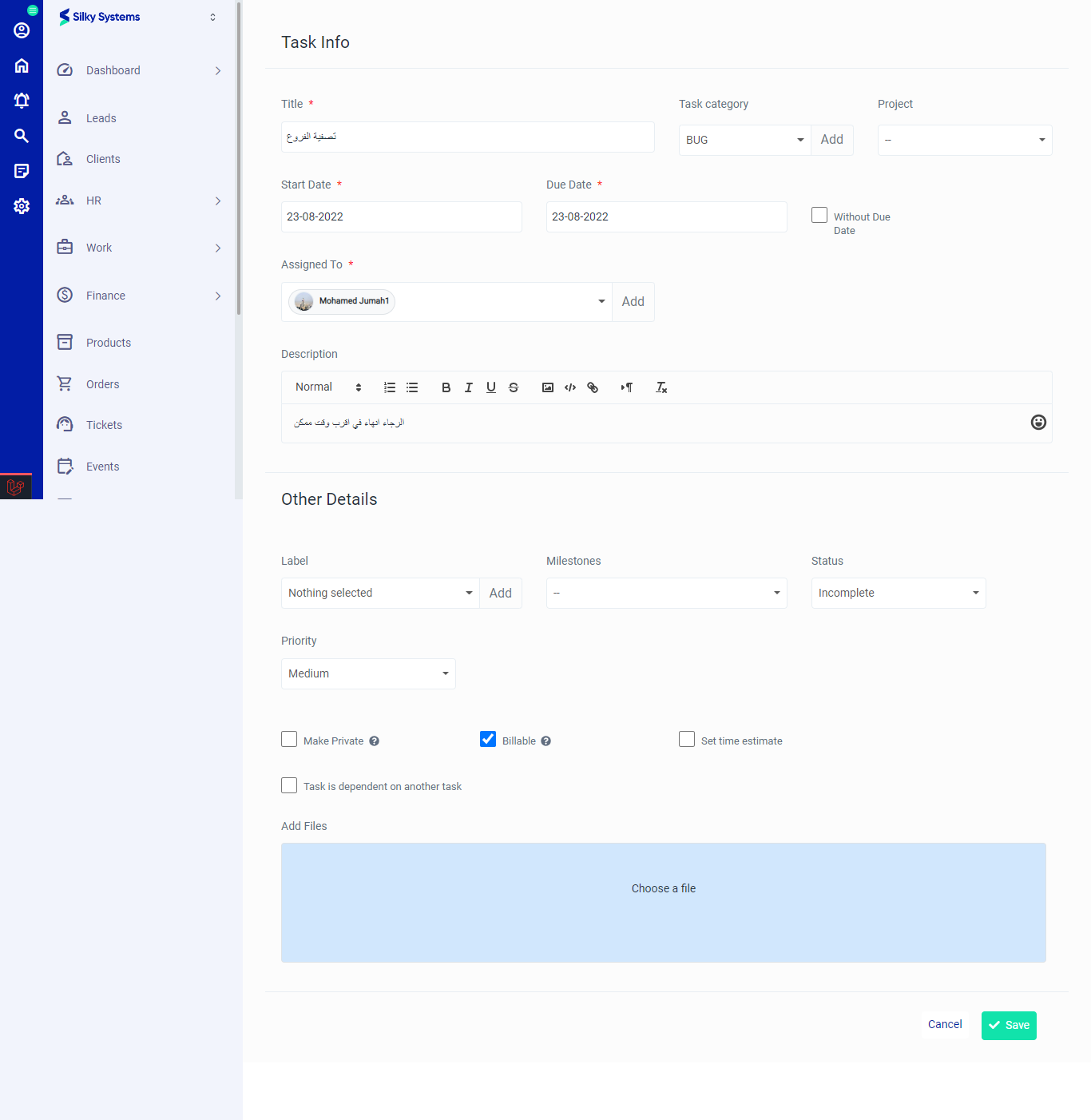 Figure.05 Edit Task
View Task
You can view all the Task details by clicking on the view option under the Action Column. Click on Mark As Complete to complete the task or click on the Start Timer to log in the task time.
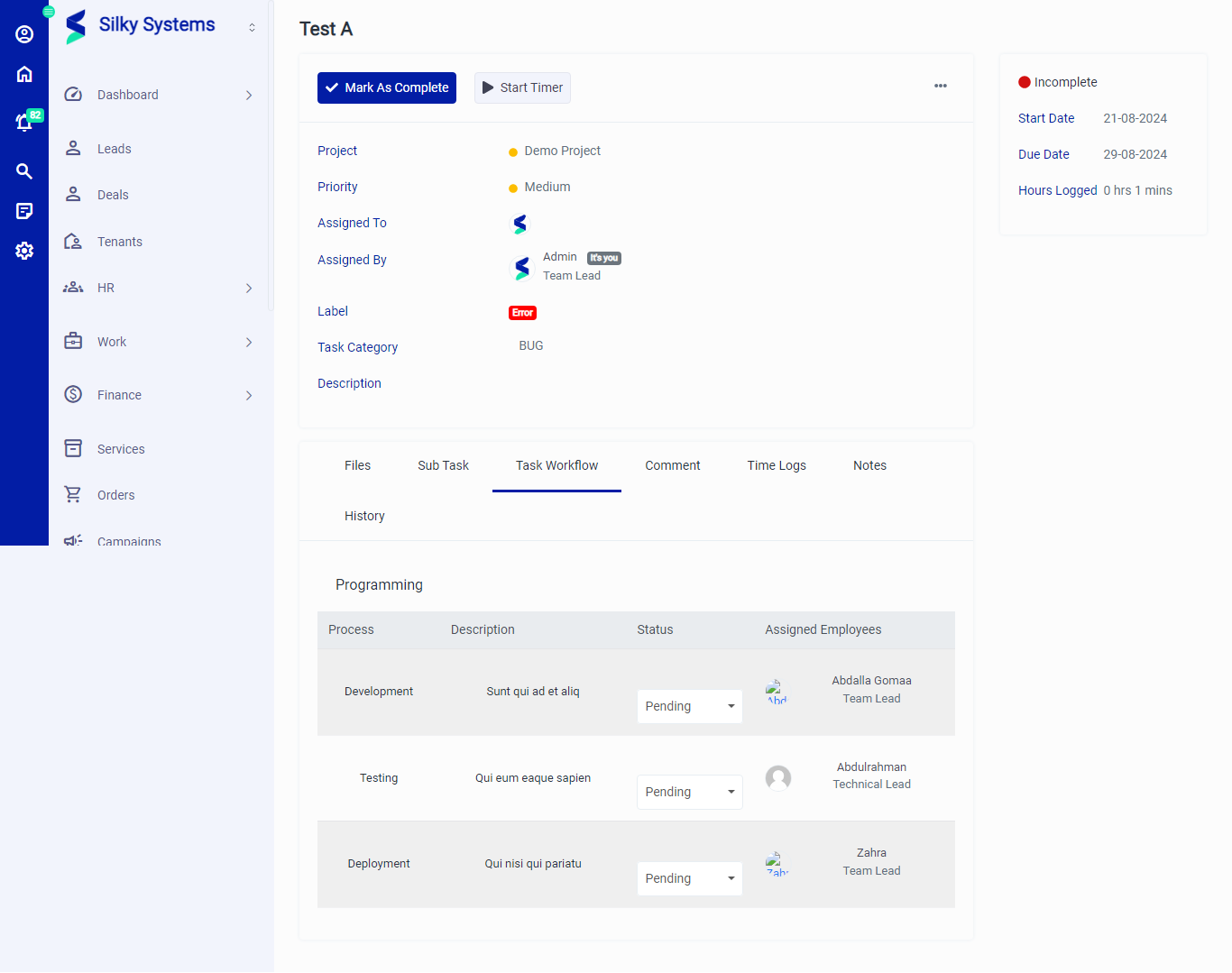 Figure.06 View Task
Files: This tab shows files and documents relates to the task. You can add files by clicking on Upload File.
Sub Task: You can break down the tasks into sub tasks. Click on Add Sub Task to create sub tasks.
Task Workflow: This tab shows the sequential workflow of the tasks. You can add task workflow by clicking on Add Task Workflow.
Comments: This tab shows the record of comments regarding the task. You can add new comment by clicking on Add Comment.
Time Logs: This tab shows the record of Time Logs regarding the task.
Notes: This tab shows the record of Notes regarding the task. You can add new Note by clicking on Add Note.
History: This tab shows the History of the task.