Leads
Leads Overview
The Leads are like potential clients, those clients that you can contact, follow up and eventually convert into actual clients.
Leads List
The lead list displays all the leads and their essential information such as the lead name, company name, next follow up date, and lead agent. You can change the lead status directly from the list by selecting the lead (click on ⬜), and click on the status dropdown. There are four lead statuses: Pending, In Process, Converted, and Tenant.
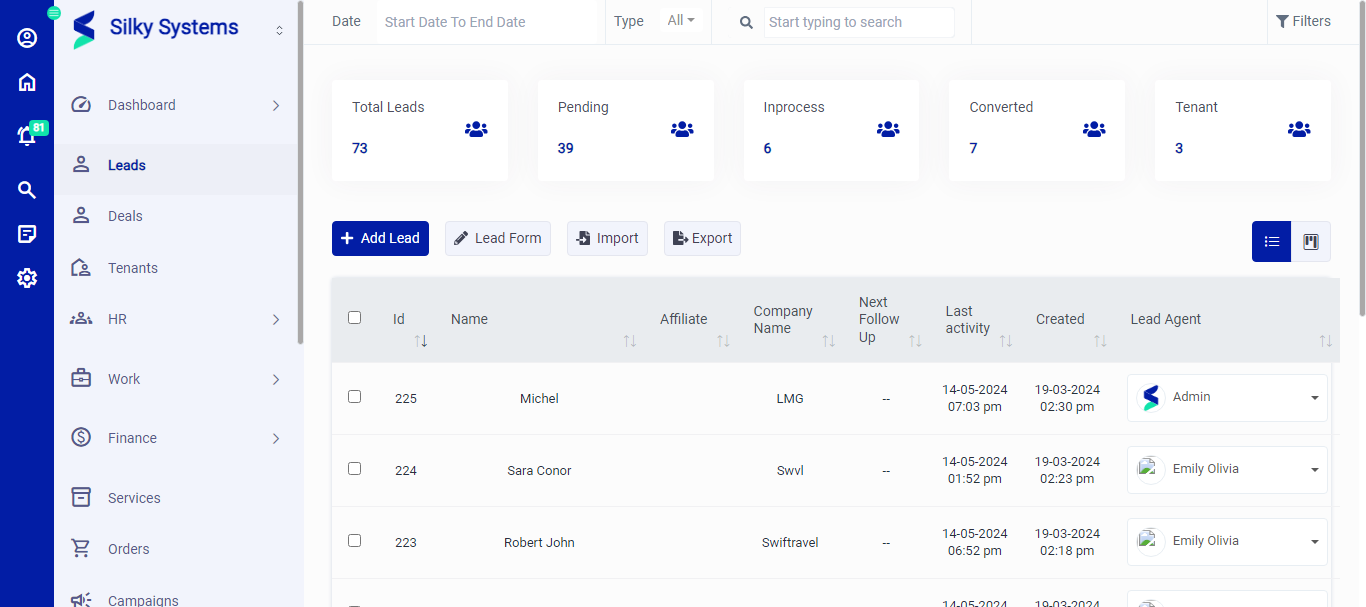 Figure.01 Leads List
Leads Form
The lead form lets you to enable or disable fields for Add Leads.
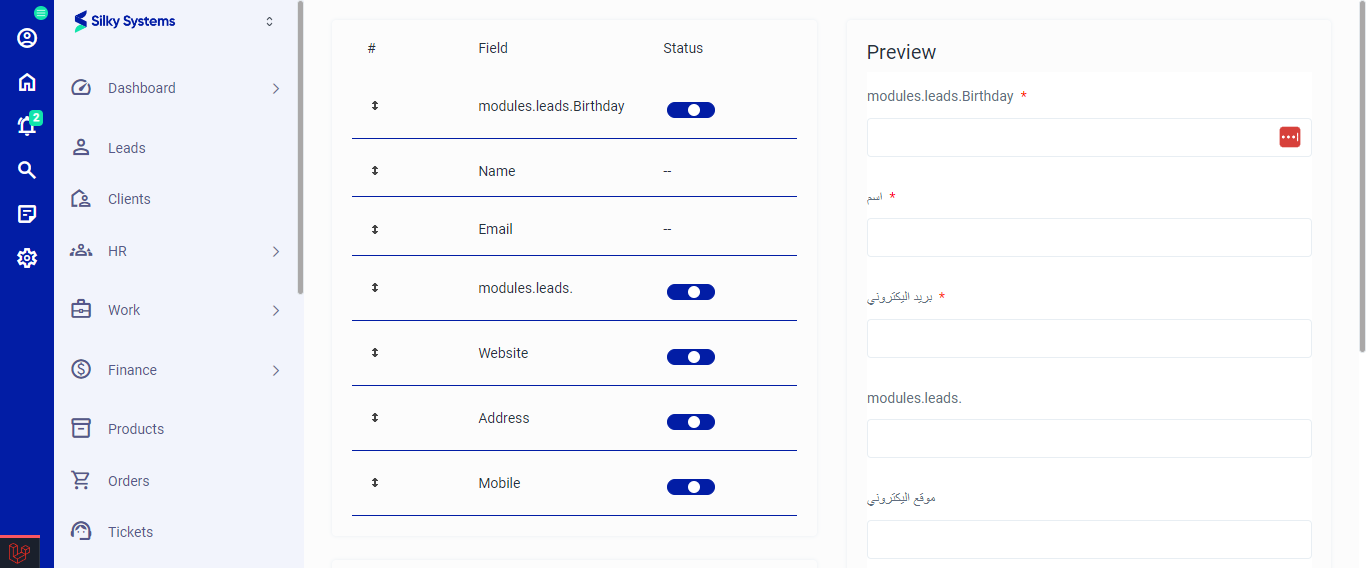 Figure.02 Leads Form
Export
You can export the list of leads by clicking on the Export button.
Import
You can import the list of leads by clicking on the Import button.
Filters
The CRM System lets you filter the leads records based on various factors such as date, and type. You can access more filters by clicking on Filters.
Table View & Kanban Board
You can change the view layout of the leads list. The CRM system provides two views such as table view and Kanban Board view. In Kanban board, you can drag and drop the leads in the pending, in process or converted categories.
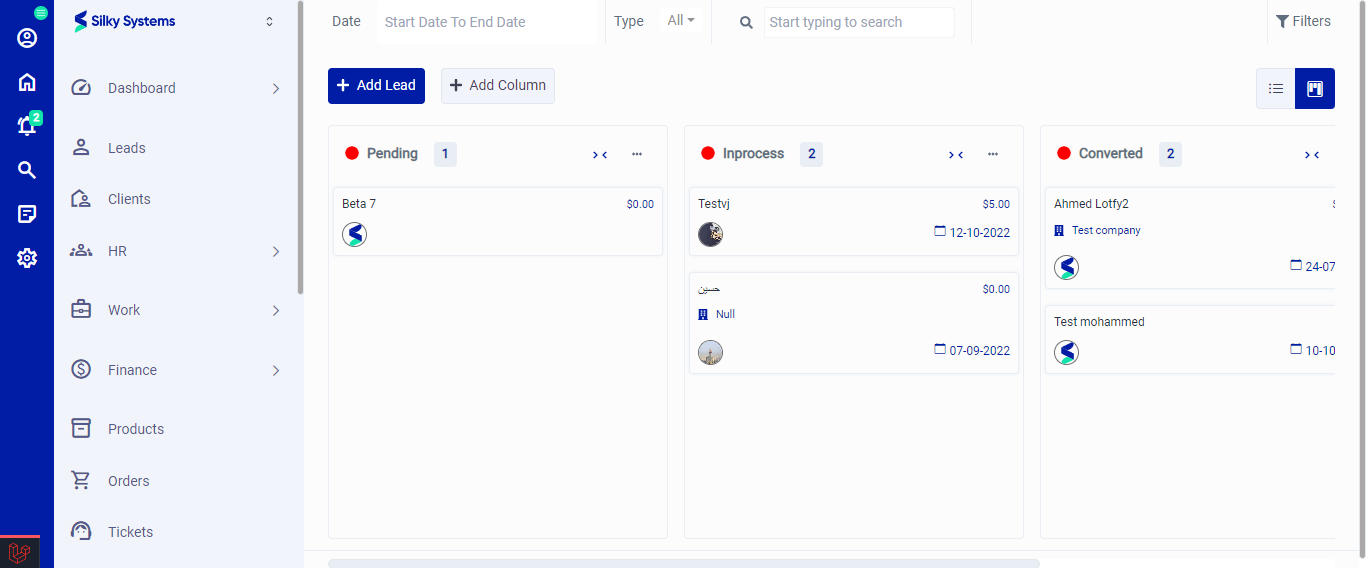 Figure.03 Kanban Board
Action Column
Select the lead by clicking on ⬜ and then click on the three vertical dots to access more options in the Action column in table view. You can perform the usual View, Edit or Delete operations as well as Create New Tenant, add Follow Up, Comment and Activity.
- Create New Tenant lets you convert the lead into tenant.
- Follow Up lets you record any follow ups with the lead.
- Comment lets you write any comment regarding the lead.
- Activity lets you record any activity with the lead.
Add Lead
To create a new lead, click on Add Lead. Select the appropriate lead type, if a lead is a company then select Company if its an individual then select Individual. The form fields will change accordingly. Fill in all the required details and click save.
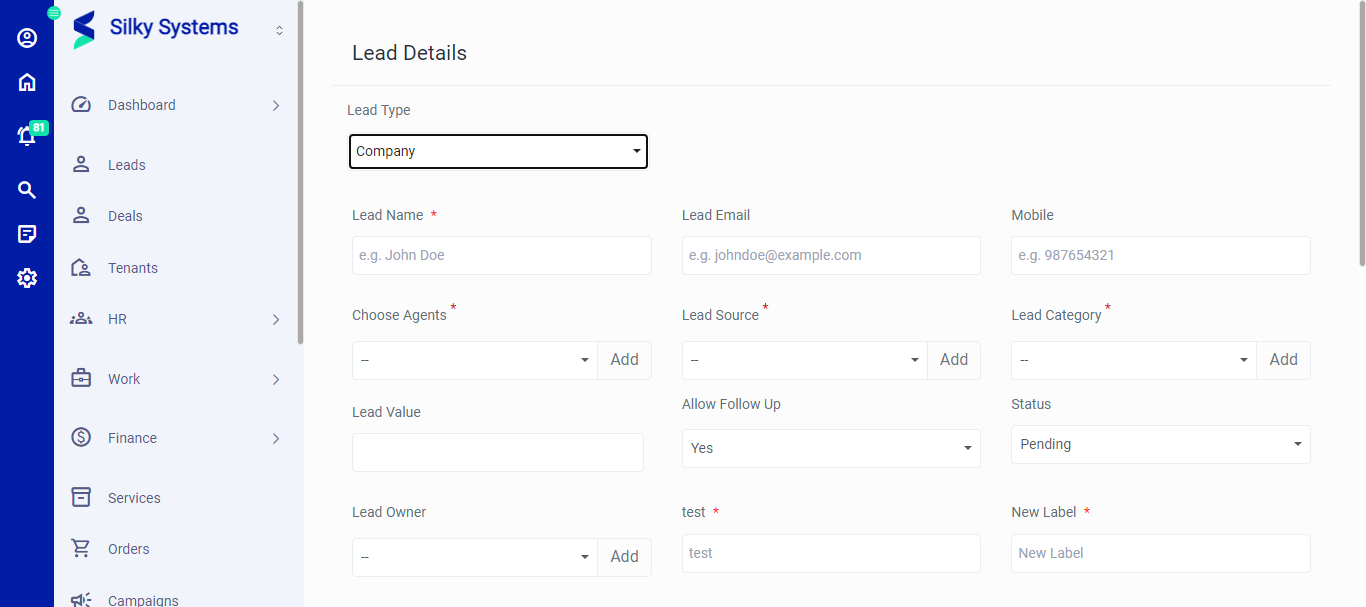 Figure.04 Add Lead
Edit Lead
You can edit all the lead details by clicking on the edit option under the Action Column.
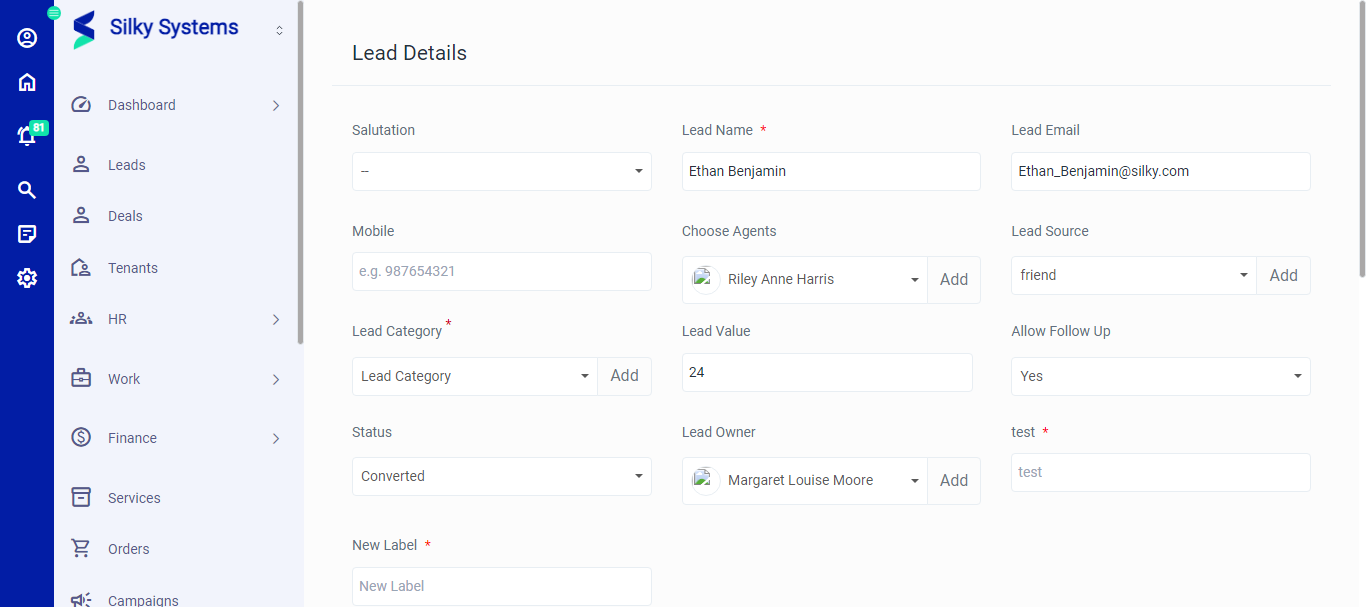 Figure.05 Edit Lead
View Lead
You can view all the lead details by clicking on the view option under the Action Column.
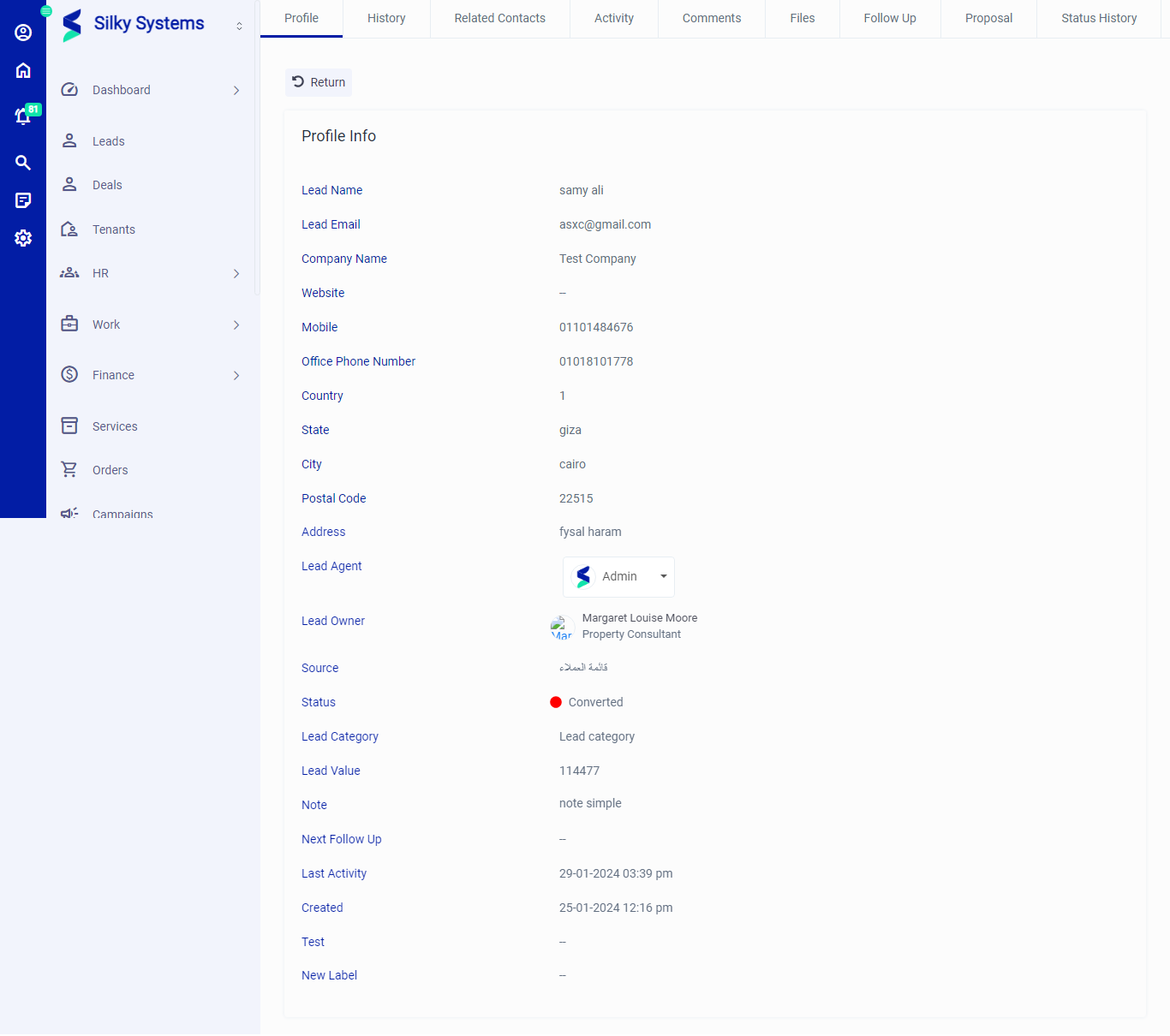 Figure.06 View Lead
Profile: This section shows the profile and general details of the lead such as name, email, company name, website, etc.
History: This sections shows the History of the lead.
Related Contacts: This section allows you to record and view all the contacts related to the lead. You can add new contact by clicking on Add Contact.
Activity: This sections shows the record of any activity or interaction between you and the lead. You can add new activity by clicking on New Activity.
Comments: This sections shows the record of comments regarding the lead. You can add new comment by clicking on New Comment.
Files: This section stores all files exchanged between you and the lead. You can add file by clicking on New File.
Follow Up: All the follow ups are displayed here. You can add new follow ups by clicking on New Follow Up.
Proposal: All the proposals are displayed here. You can add new proposal by clicking on Create Proposal.
- Create Proposal
Fill in all the necessary details and click save.
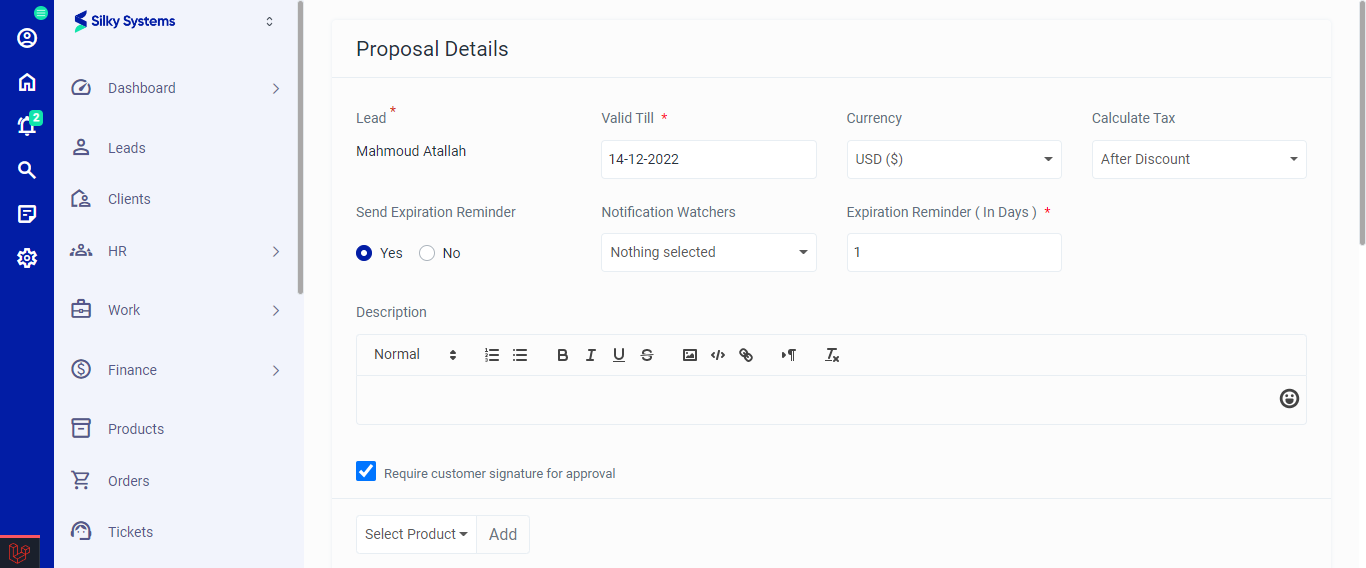 Figure.07 Create Proposal
- Status History: This sections shows the history of status regarding the lead.