Deals
Deals Overview
The Deals feature in the Silky Systems CRM provides a comprehensive interface to manage all business deals efficiently. This feature is essential for tracking progress, managing client interactions, and ensuring successful deal closures. Below is a detailed explanation of how to navigate and use the Deals feature.
Deals List
When you access the Deals section from the left-hand sidebar, you are presented with a table that lists all the current deals. This table provides a high-level overview, allowing you to quickly assess the status, budget, and other critical details of each deal.
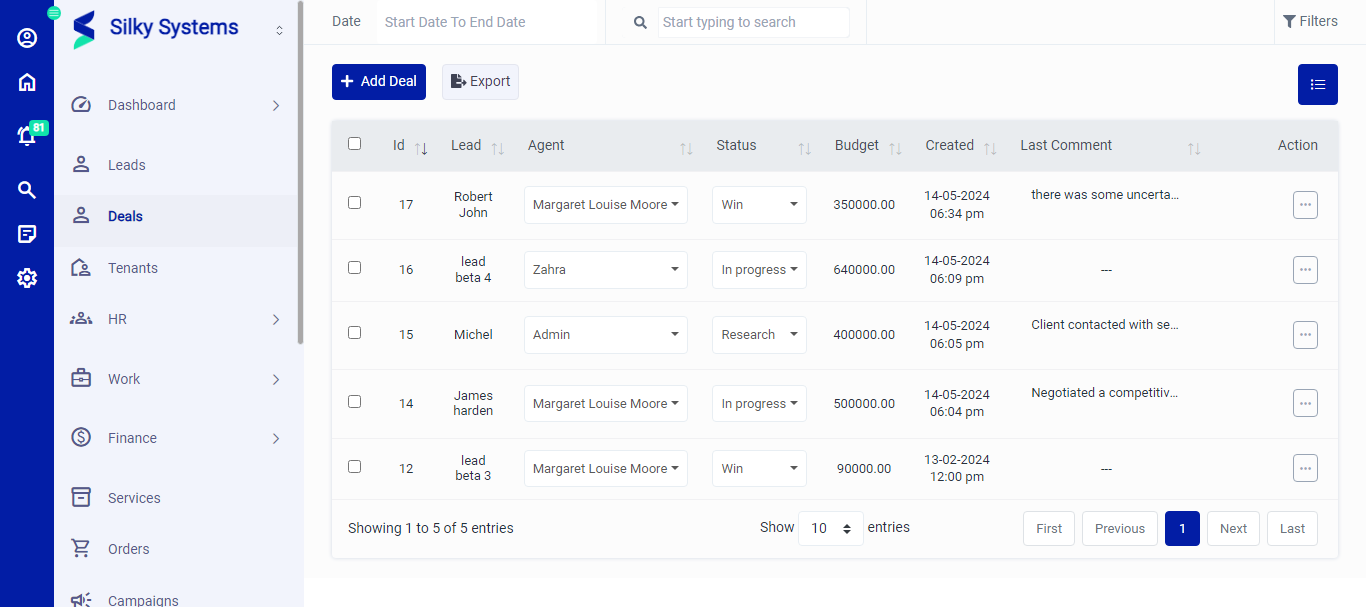 Figure.01 Deals List
Key Columns:
- ID: Unique identifier for each deal.
- Lead: The name of the lead associated with the deal.
- Agent: The agent responsible for managing the deal.
- Status: Current progress status of the deal (e.g., Win, In Progress, Research).
- Budget: The financial scope of the deal.
- Created: The date and time when the deal was created.
- Last Comment: A brief snippet of the latest comment added to the deal.
Export
You can export the list of deals to a file by clicking on the "Export" button. This is useful for reporting purposes or for sharing deal information with other stakeholders.
Filters
At the top of the Deals page, there are filtering options to help you narrow down the list of deals. You can filter by date range, search for specific deals by typing keywords, and use the dropdown filters to organize deals by different criteria such as agent, status, or lead.
Action Column
Click on the three vertical dots to access more options in the Action column in table view. You can perform the usual View, Edit or Delete operations along with adding a New Comment.
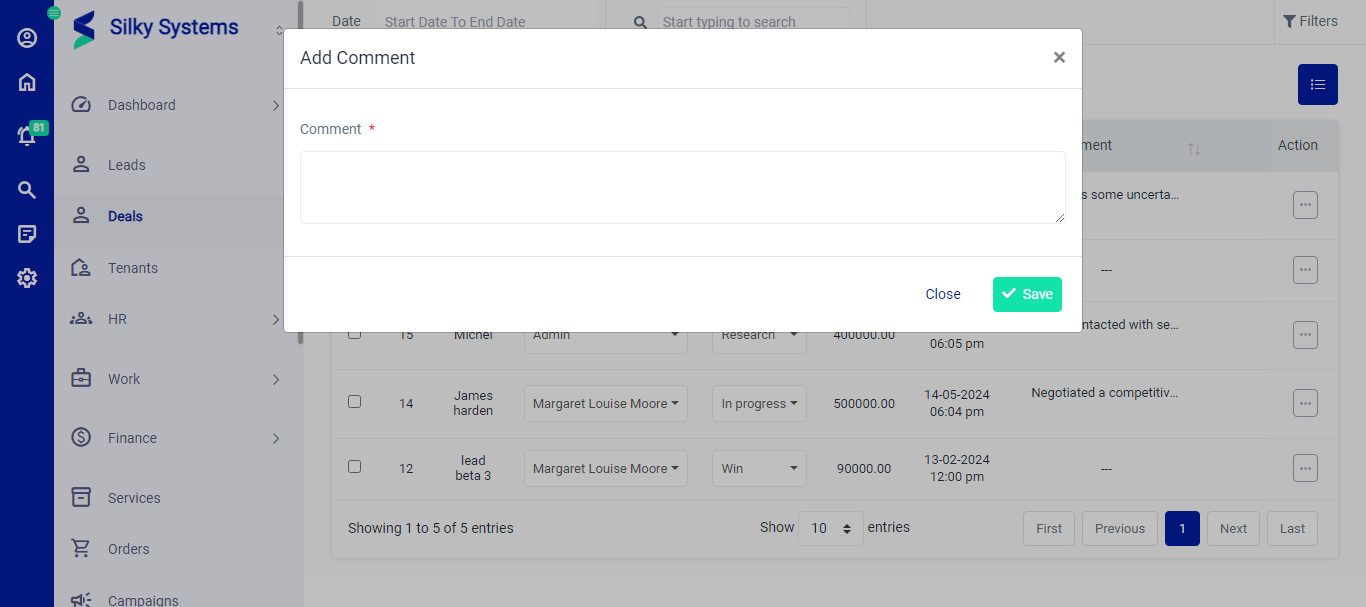 Figure.01 Deals List
Add Deals
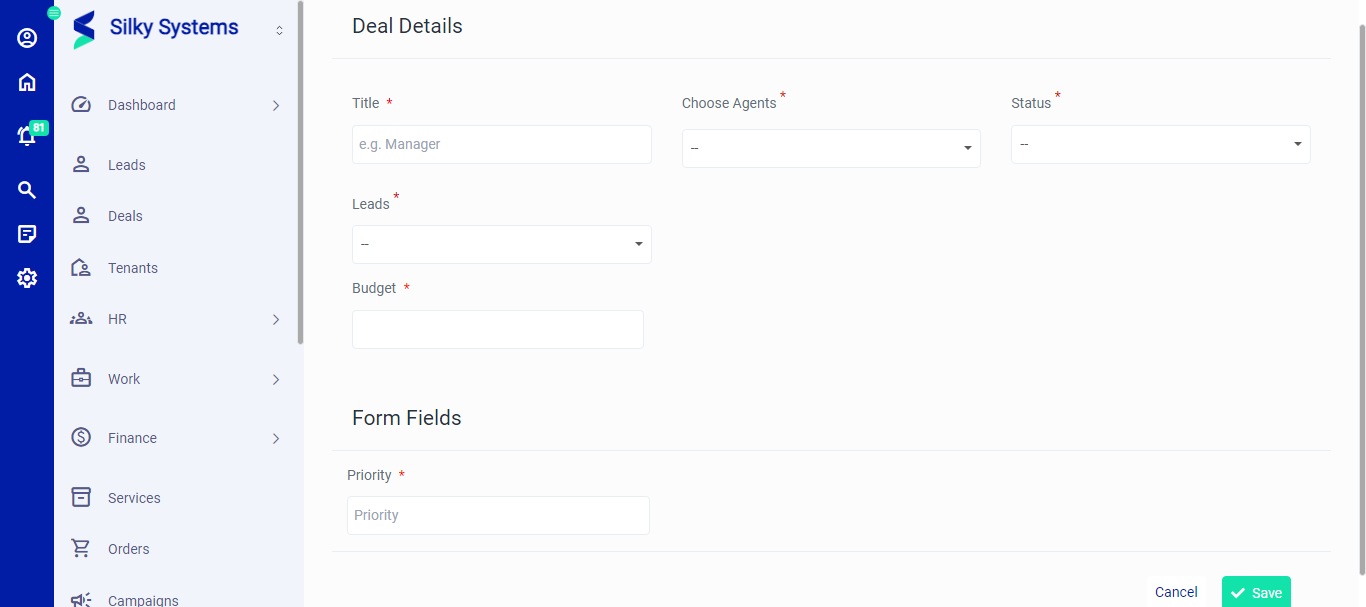 Figure.01 Deals Add
To add a new deal:
- Click on the "Add Deal" button located at the top of the Deals page.
- Complete the required fields in the form:
- Title: Enter a descriptive title for the deal.
- Choose Agents: Select the agent who will manage the deal from the dropdown list.
- Leads: Choose the lead associated with this deal.
- Status: Set the current status of the deal.
- Budget: Enter the budget for the deal.
- Priority: Select the priority level (High, Medium, Low).
- Once all fields are completed, click "Save" to create the deal.
The new deal will then appear in the main deals list.
Edit Deals
To edit the details of an existing deal:
- Locate the deal in the main list and click on the three dots (⋮) icon under the Action column.
- Select "Edit" from the dropdown menu.
- This will open the deal's details in the same form used for creating a new deal.
- Make the necessary changes to any of the fields, such as updating the Title, changing the Agent, modifying the Status, or adjusting the Budget.
- After making the changes, click "Save" to update the deal.
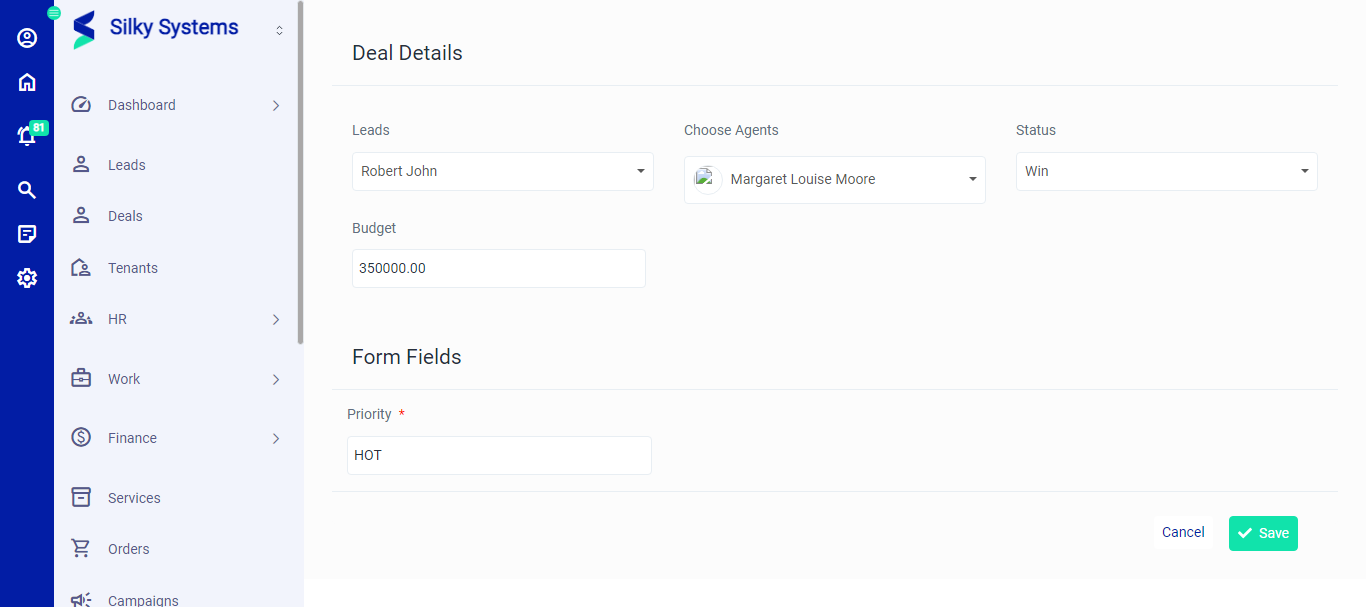 Figure.01 Deals Edit
Editing allows users to keep deal information accurate and up-to-date, ensuring all team members have access to the latest details.
View Deals
To view more details about a specific deal, click on the deal's ID or use the action menu on the right side of the deal entry. This will open the Profile Info page, where you can see an expanded view of all details, including:
- Title
- Lead Name
- Agent
- Budget
- Status
- Priority
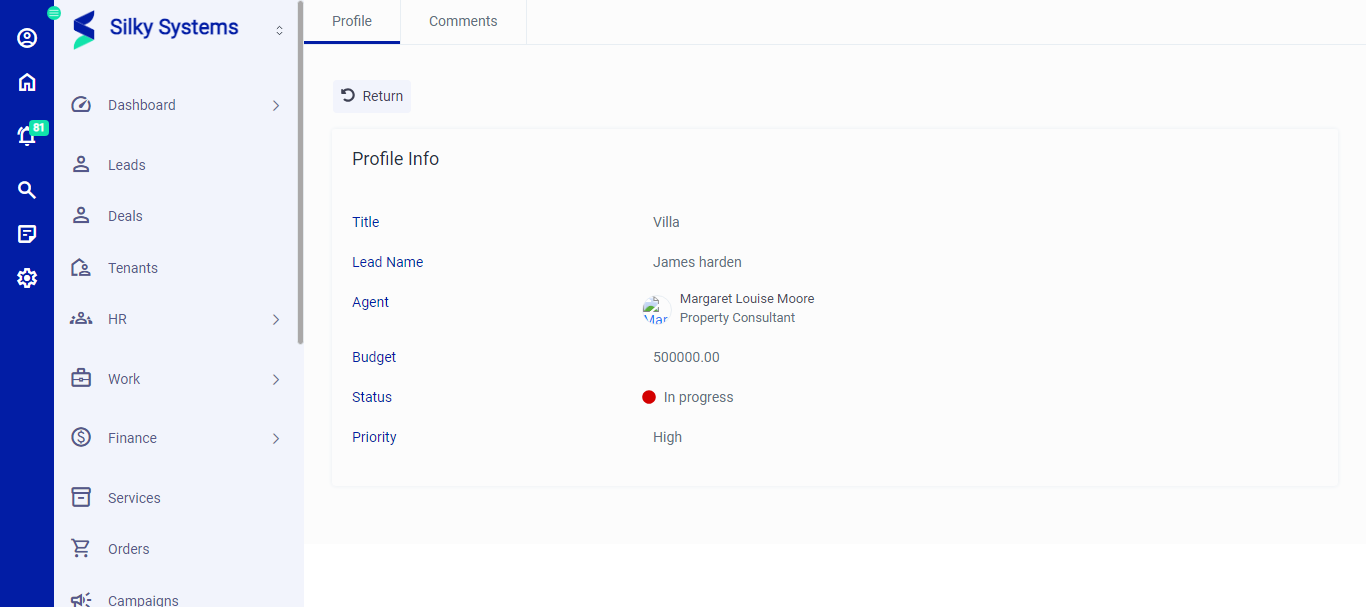 Figure.01 Deals View
Additionally, there is a Comments tab where you can add or view comments related to the deal. This is useful for keeping track of discussions, updates, and next steps.