Tickets
Tickets Overview
Tickets can be created on behalf of a client or employee. It is created in case of any issue or problem faced by the client or employee. You can view the list of all Tickets by clicking on Tickets in the left sidebar menu. You can add, edit, delete, or export Tickets. At the top of the Tickets page, you'll find the Add Tickets button. The Add Tickets option allows you to create New Tickets.
Tickets List
The Tickets list displays all of yours Tickets and their essential information such as the Tickets name, client, amount, start, and end date.
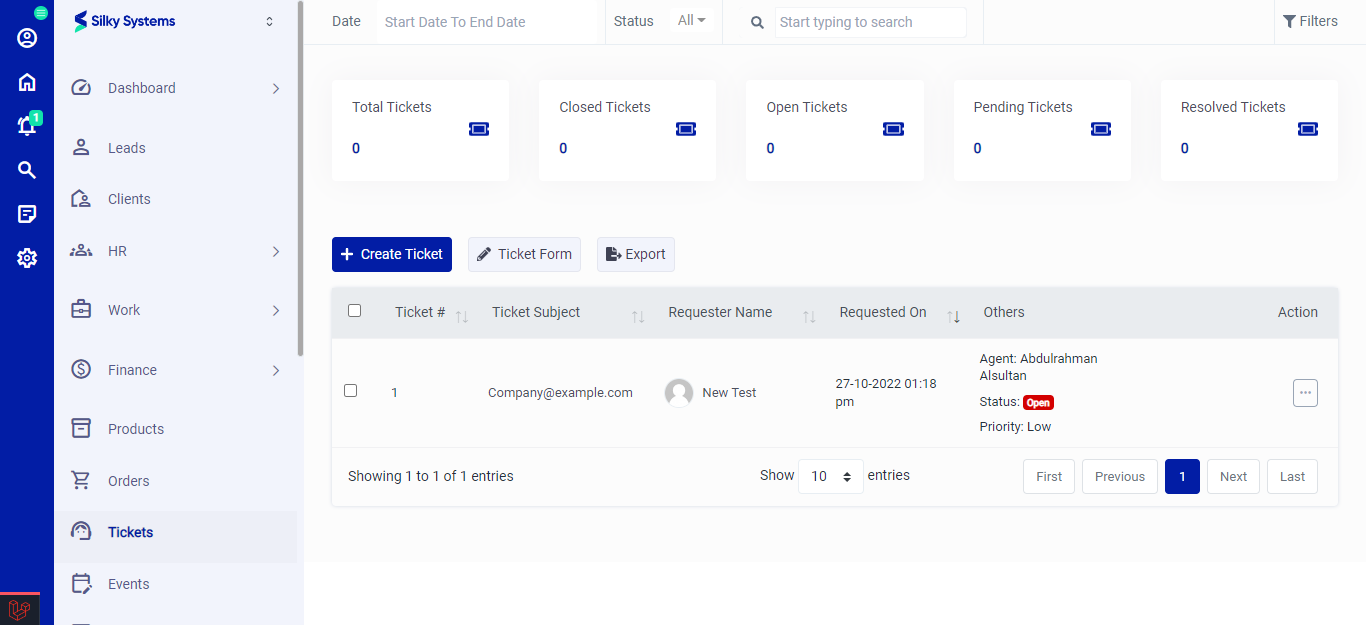 Figure.01 Tickets List
Export
You can export the list of Tickets by clicking on the Export button.
Filters
The CRM System lets you filter the Tickets records based on various factors such as date, and type. You can access more filters by clicking on Filters.
Action Column
Click on the three vertical dots to access more options in the Action column in table view. You can perform the usual View, Edit or Delete operations.
- View: The view button lets you view the product details.
- Delete: The delete button deletes the product.
Create Tickets
To create a new Tickets, click on Create Ticket. Select the Requester and Requester Name. Fill in all the required details and click save.
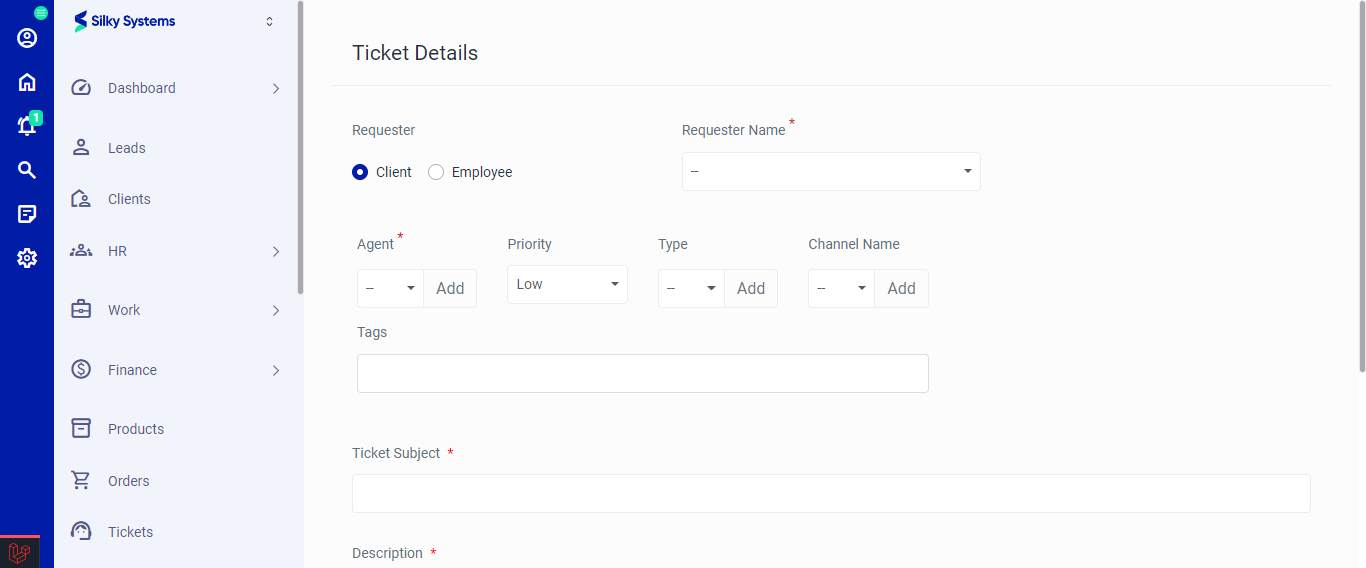 Figure.02 Add Tickets
View Tickets
You can view all the Tickets details by clicking on the view option under the Action Column.
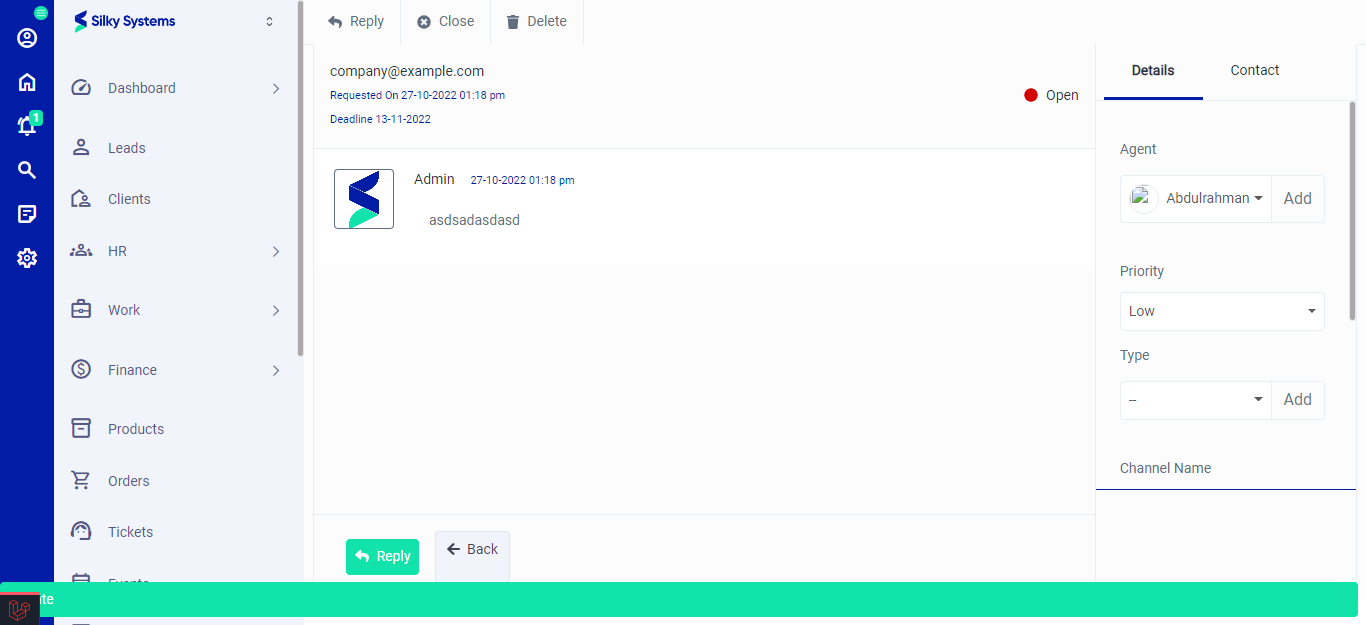 Figure.03 View Tickets