Project
Project Overview
A Project is a team activity that involves study or design and is carefully planned to attain a certain goal. An alternate viewpoint regards a project as a series of events: a collection of related activities to be completed over a given period and within particular constraints. You can create and mange all Projects, their details and progress by clicking on Work -> Project in the left sidebar menu.
Project List
The Project list displays all the Project and their essential information such as the Project name, members, deadline, client, progress and status.
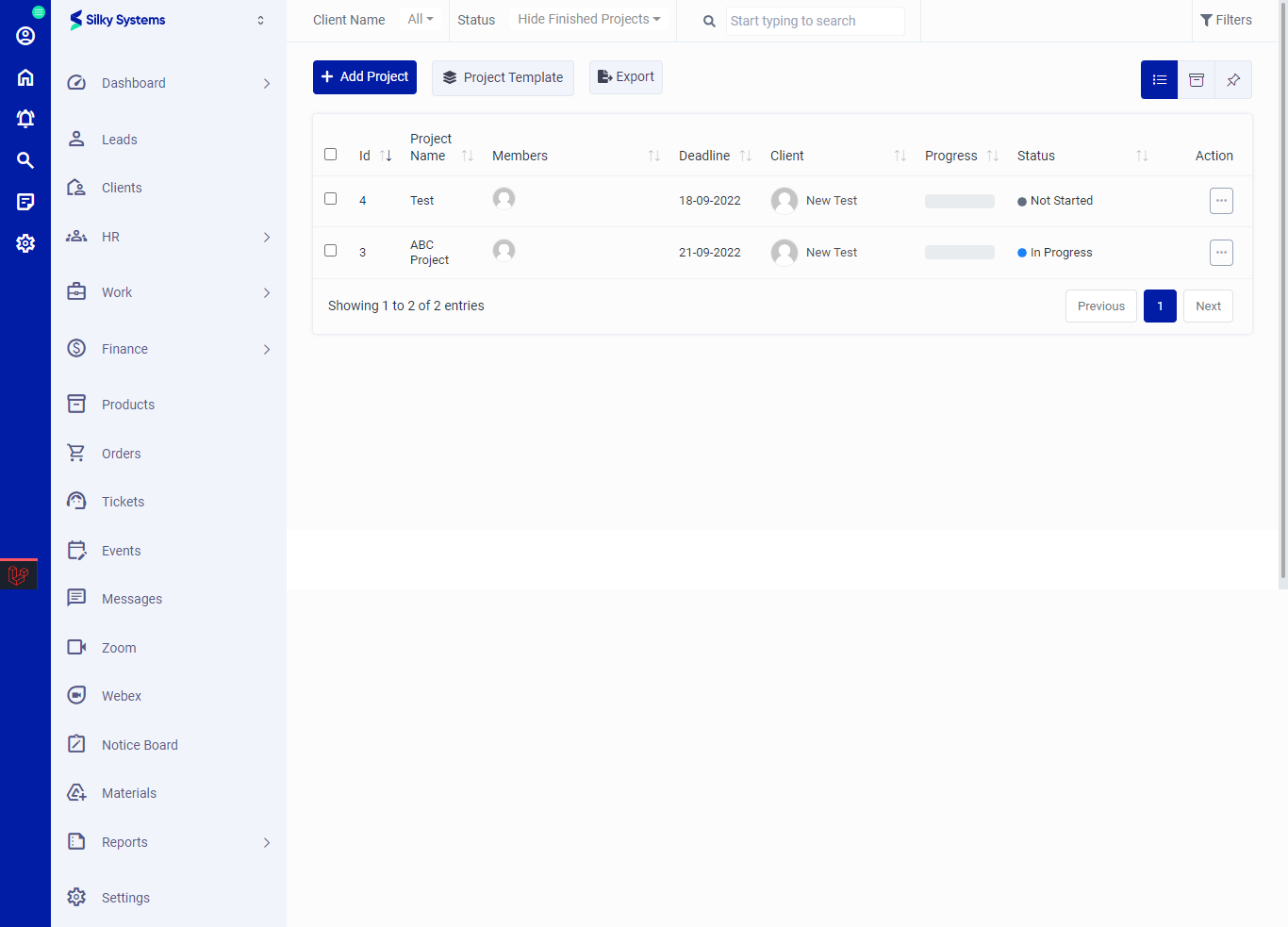 Figure.01 Project List
Export
You can export the list of Projects by clicking on the Export button.
Filters
The CRM System lets you filter the Project records based on various factors such as date, and type. You can access more filters by clicking on Filters.
Project Template
You can create a template of the project. In this way you can create your projects quickly by just clicking on create project in the project template page.
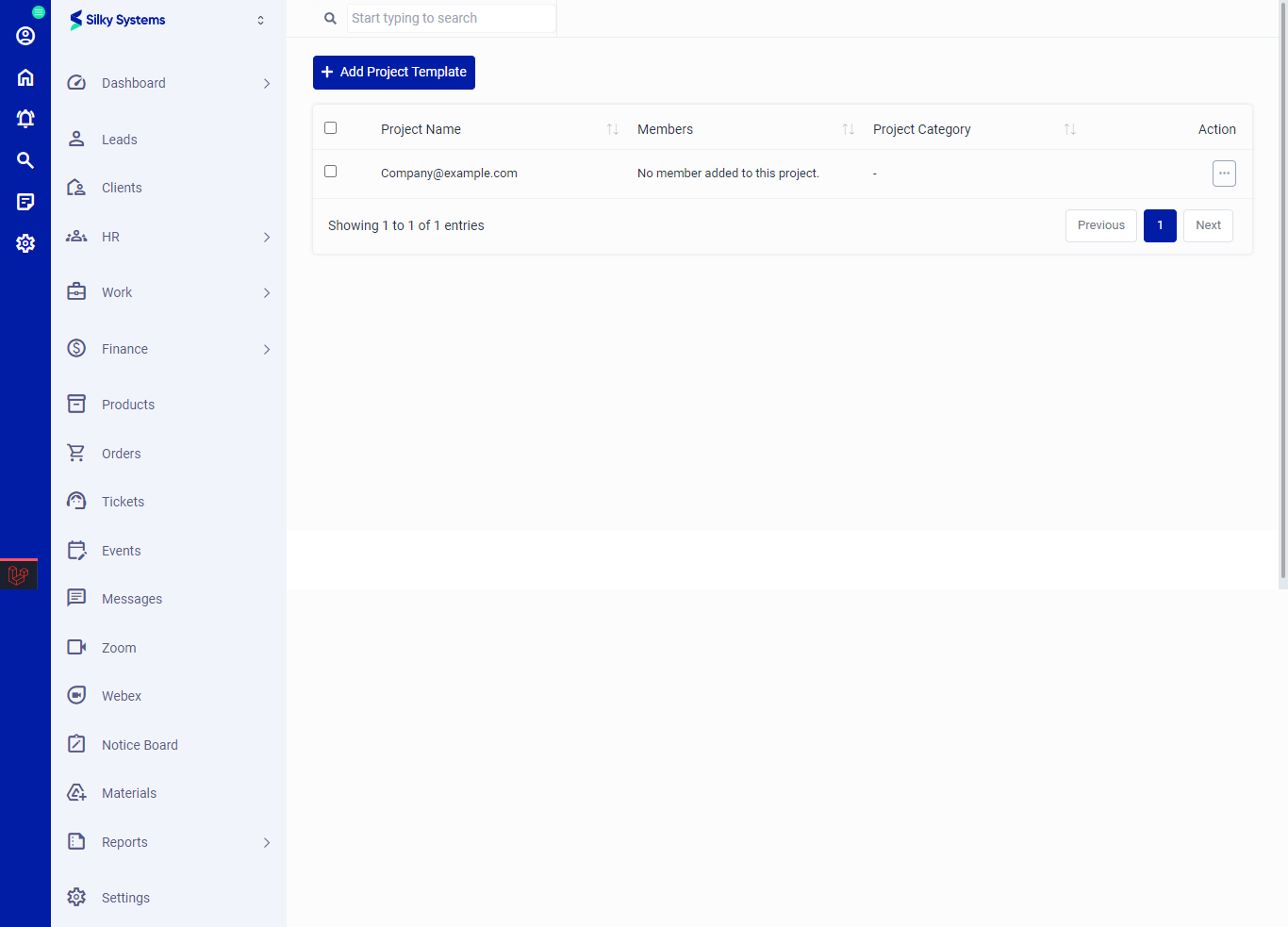 Figure.04 Add Project
Action Column
Click on the three vertical dots to access more options in the Action column in table view. You can perform the usual View, Edit or Delete operations along with other operations.
- Gantt Chart: This shows the Gantt Chart view of the Project tasks.
- Public Gantt Chart: The public link options creates a URL link of the project Gantt Chart that can be shared with anyone who is not registered on the CRM system.
- Public Task Board: The public link options creates a URL link of the project task board that can be shared with anyone who is not registered on the CRM system.
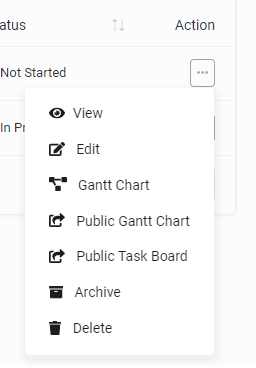 Figure.01 Contract List
Add Project
To create a new project, click on Add Project. Fill in all the required details. You can enable the manual time logs, and whether the clients can manage the project tasks by themselves. Click save when you are done.
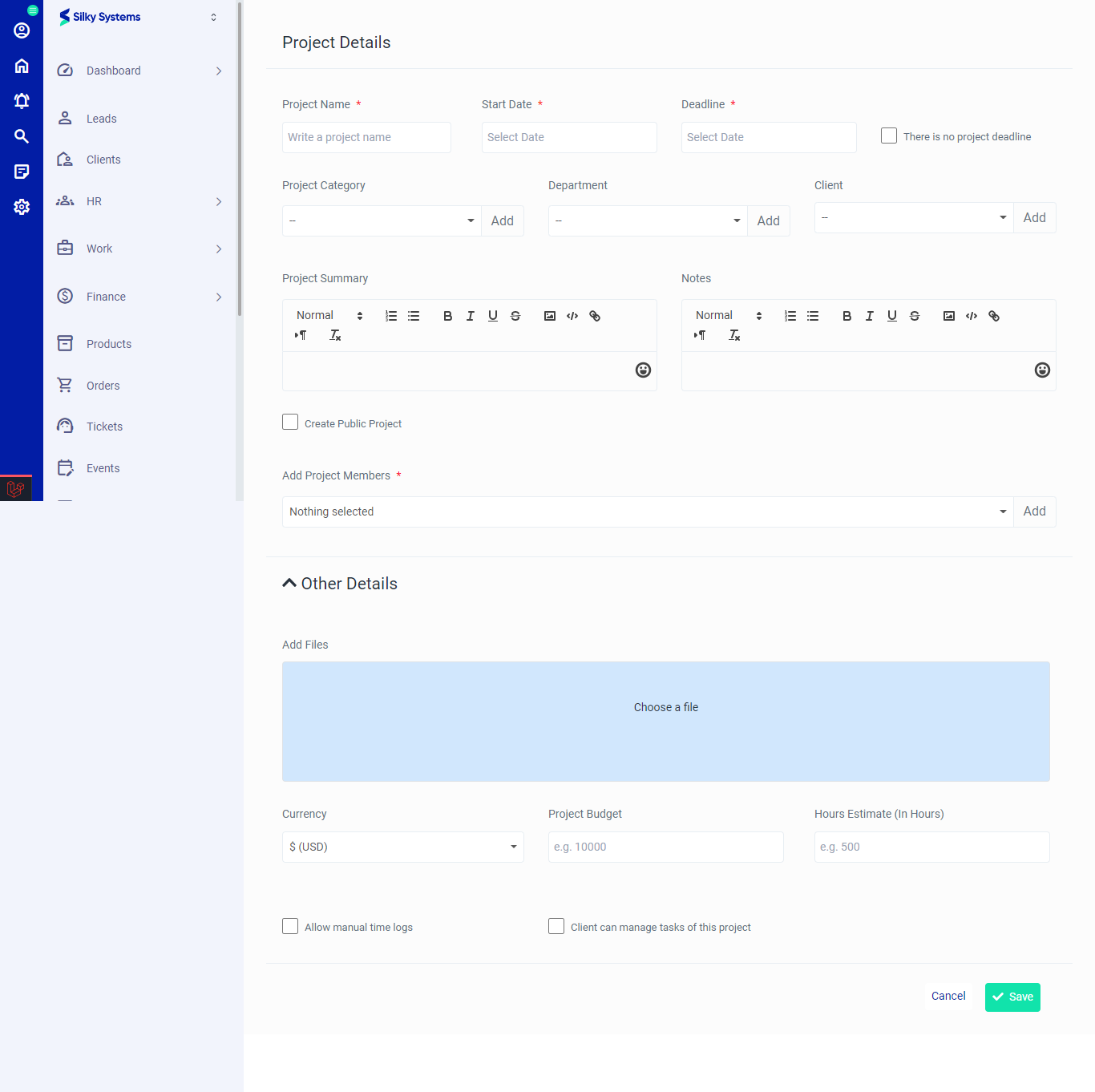 Figure.04 Add Project
Edit Project
You can edit all the Project details by clicking on the edit option under the Action Column.
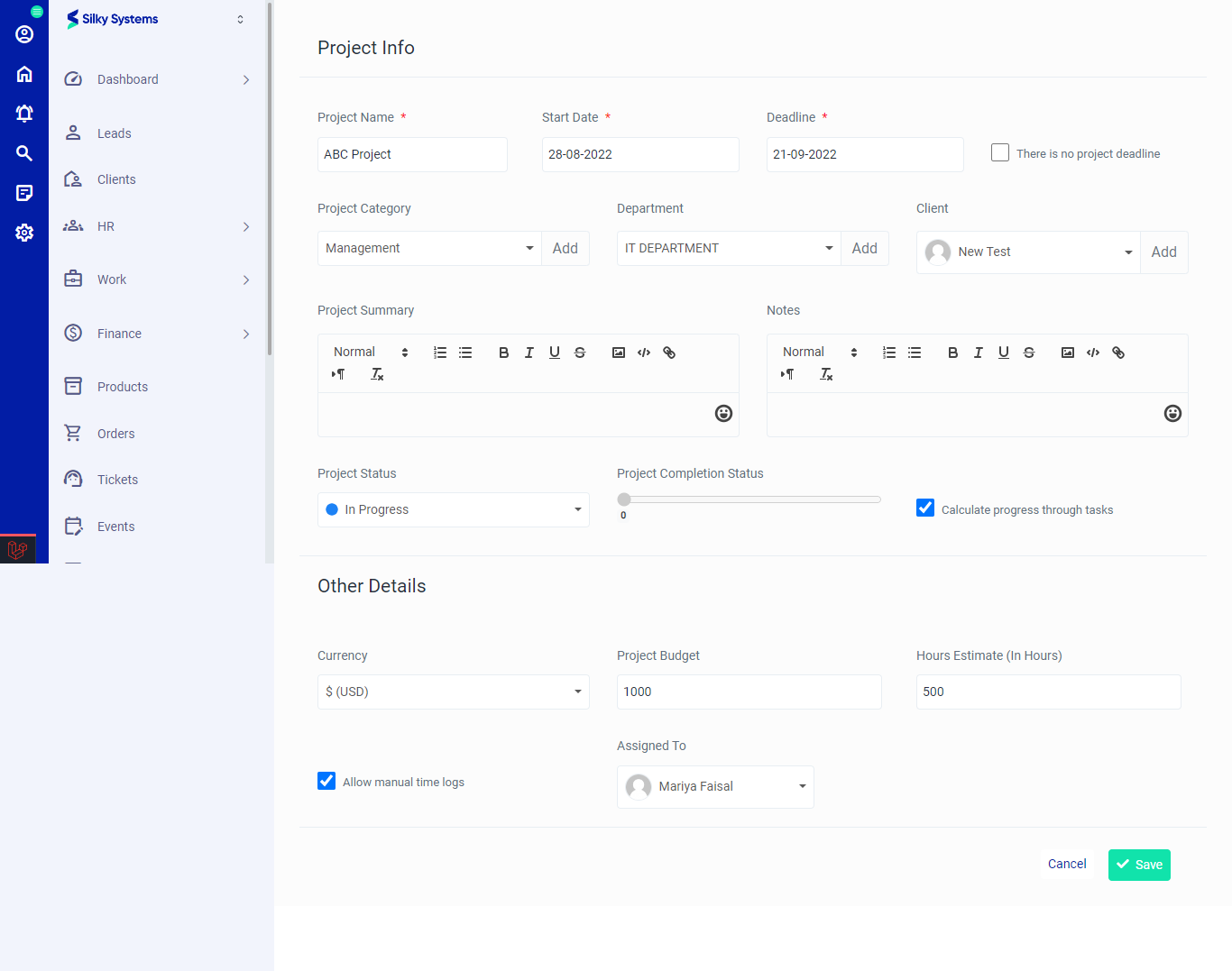 Figure.05 Edit Project
View Project
You can view all the Project details by clicking on the view option under the Action Column.
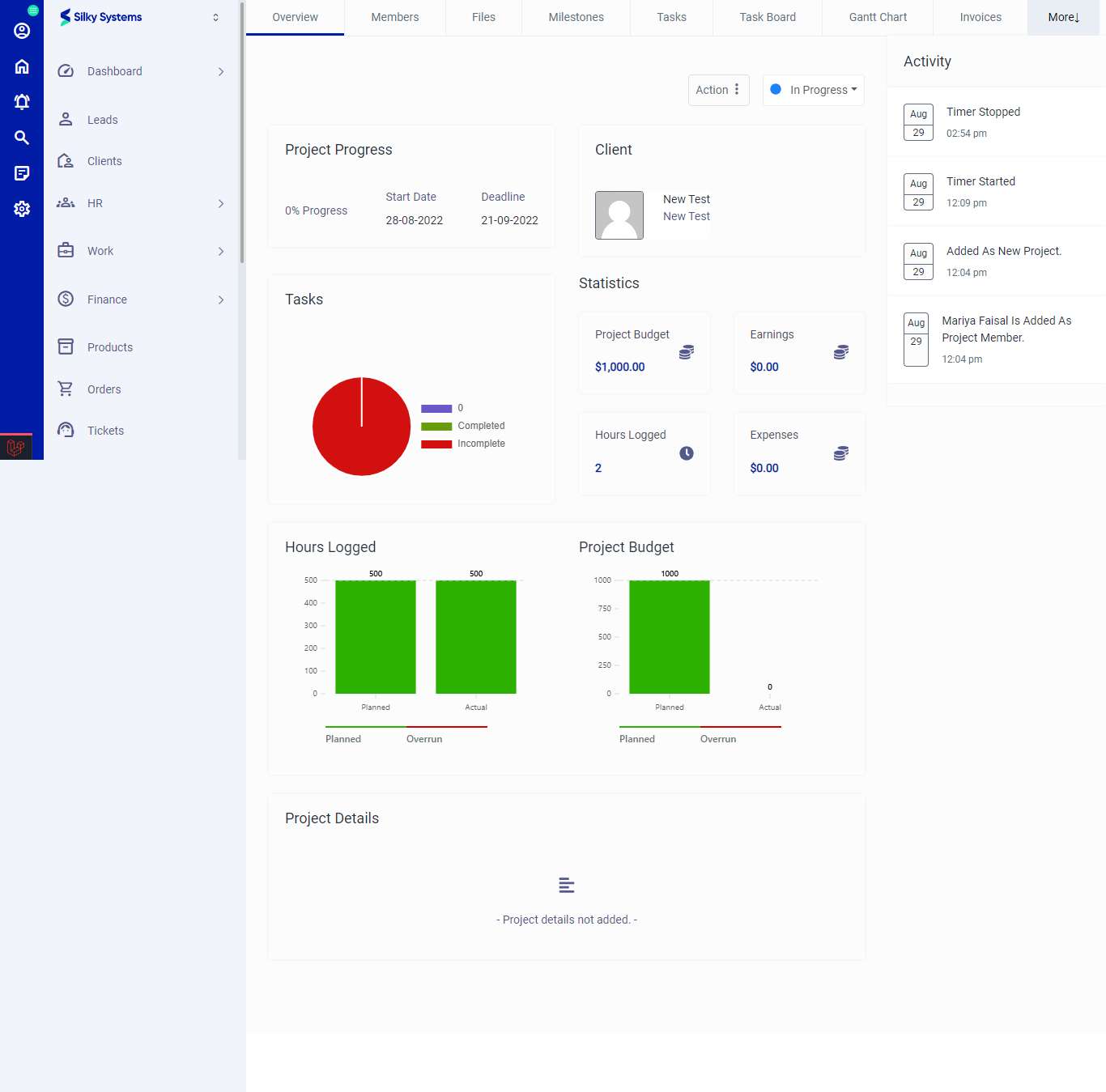 Figure.06 View Project