Materials
Introduction
The Materials feature of the CRM system allows users to add, download, and delete files associated with a customer or project. This guide explains the functionality of the Materials feature and how to use it effectively.
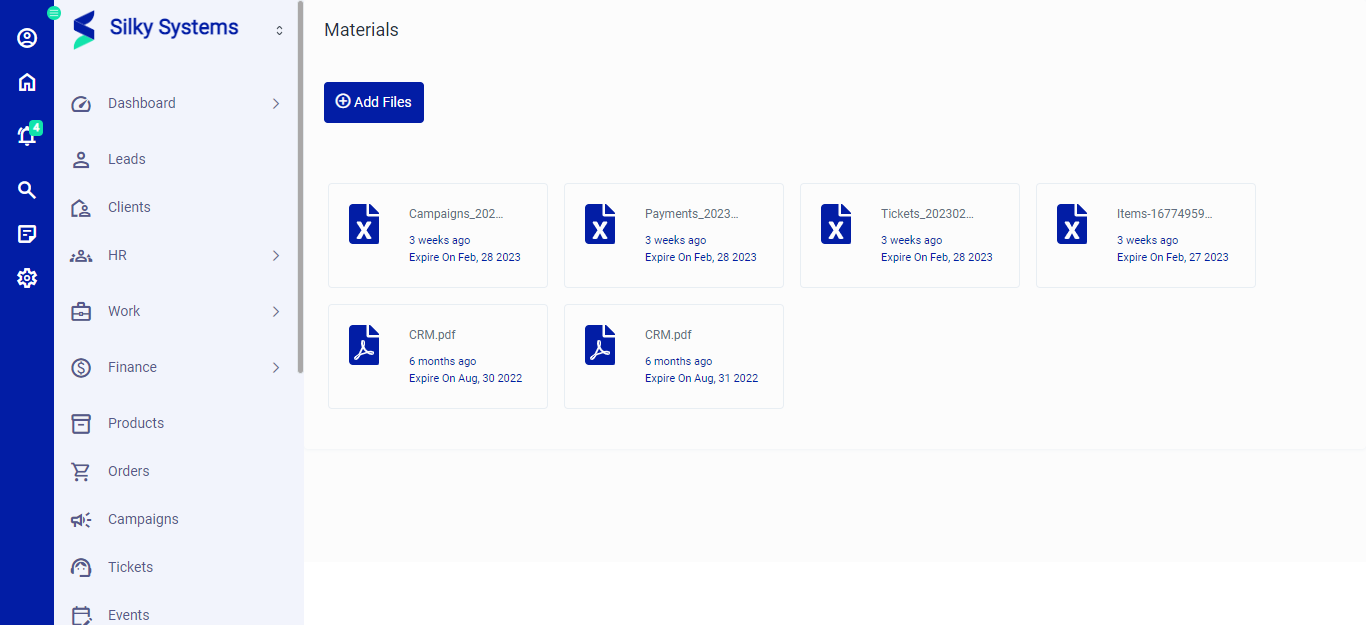 Figure.01 Materials List
Adding files
To add files to a customer or project in the CRM system, follow these steps:
- Click on the "Materials" tab to open the Materials feature.
- Click the "Add Files" button to upload files from your computer.
- Select the files you want to upload and click "Open" to begin the upload process.
- Set the expiration date and reminder for the file if needed.
- Click the "Save" button to add the files to the customer or project.
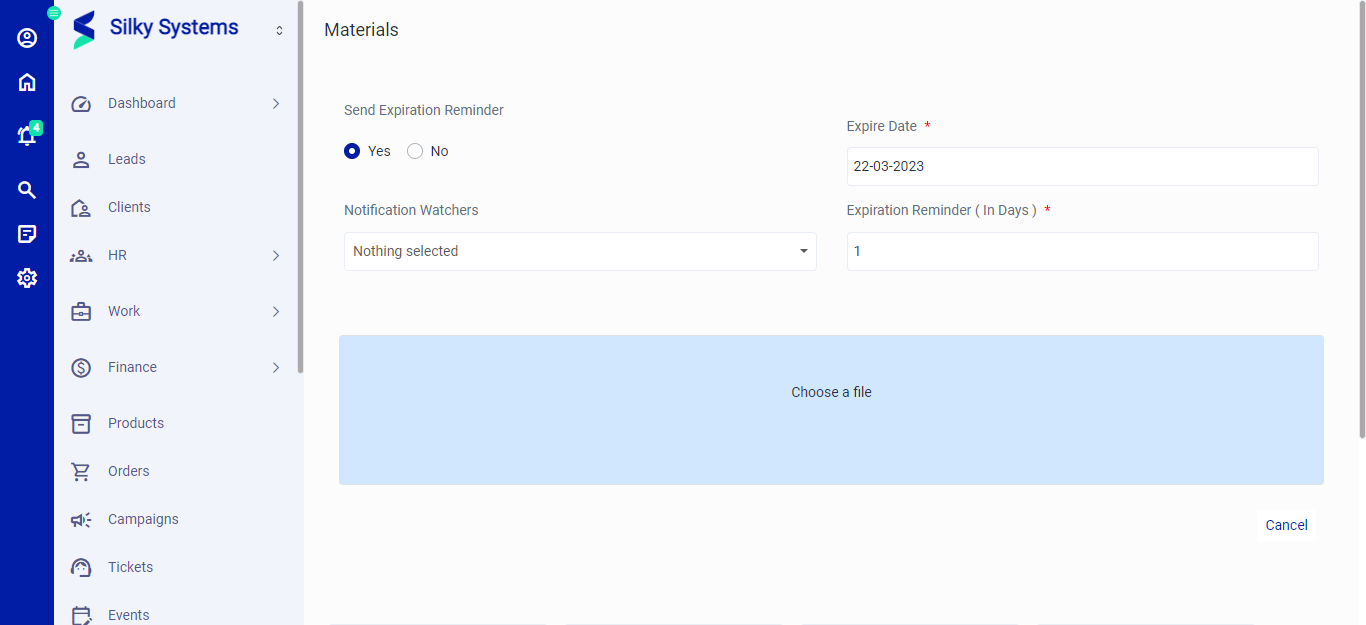 Figure.02 Materials List
Downloading files
To download files associated with a customer or project in the CRM system, follow these steps:
- Click on the "Materials" tab to open the Materials feature.
- Locate the file you want to download and click on the three dots to open additional actions.
- Click the "Download" button to save the file to your computer.
Deleting files
To delete files associated with a customer or project in the CRM system, follow these steps:
- Click on the "Materials" tab to open the Materials feature.
- Locate the file you want to delete and click on the three dots to open additional actions.
- Click the "Delete" button to remove the file from the CRM system.
Conclusion
The Materials feature of the CRM system is a powerful tool for managing files associated with customers or projects. By following the steps outlined in this guide, you can easily add, download, and delete files as needed. Remember to set expiration dates and reminders for files to ensure they are not forgotten and are removed from the system when no longer needed.