Leads
Leads Management in CRM Mobile Application
The Leads feature in the CRM mobile application is designed to manage potential clients effectively. It allows the sales team to track, follow up, and nurture leads towards conversion into paying customers.
Viewing Leads
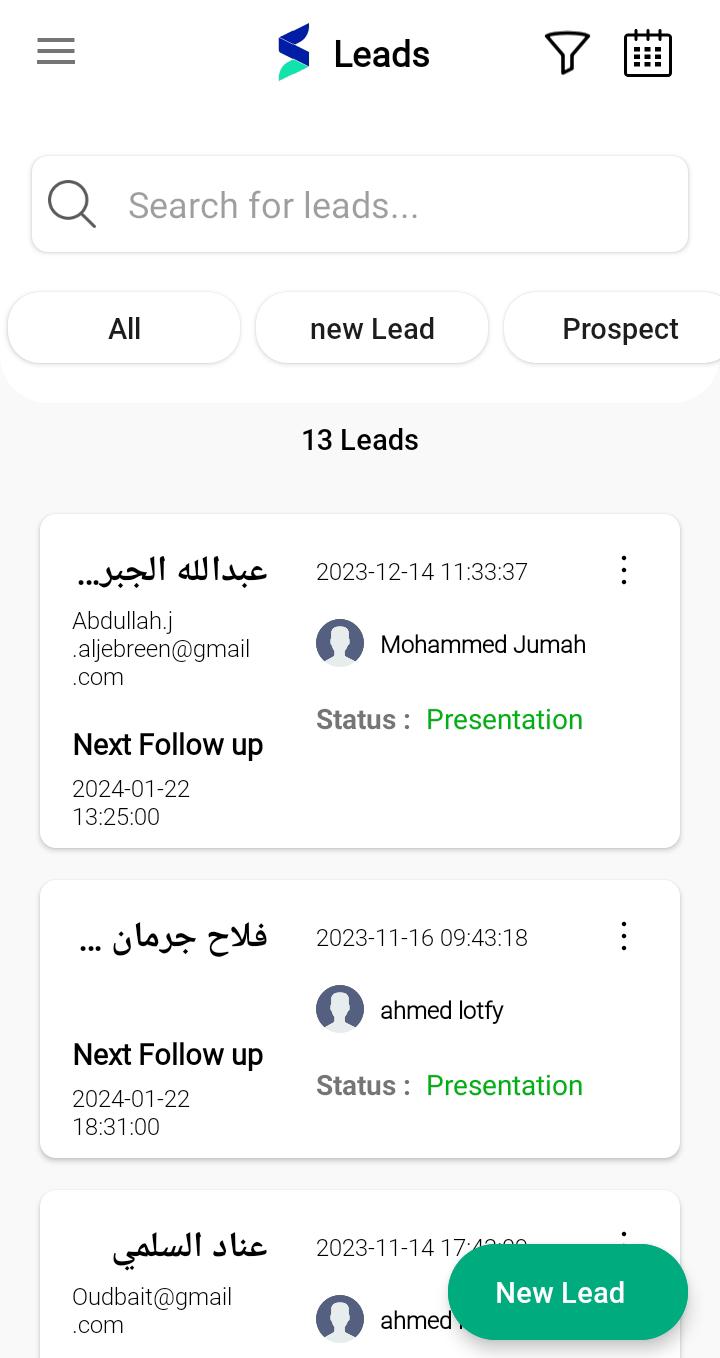
To view all leads, tap the "Leads" icon on the left side navigation menu.
Here, you'll find a searchable list of leads with their status, such as "new Lead" or "Prospect."
Each lead is displayed with essential details:
- Lead Name: The name of the lead.
- Next Follow Up: Scheduled date and time for the next follow-up.
- Status: Current status of the lead, e.g., "Presentation."
Adding New Leads
- Tap the "New Lead" button located at the bottom right of the leads list screen.
Creating an Individual Lead
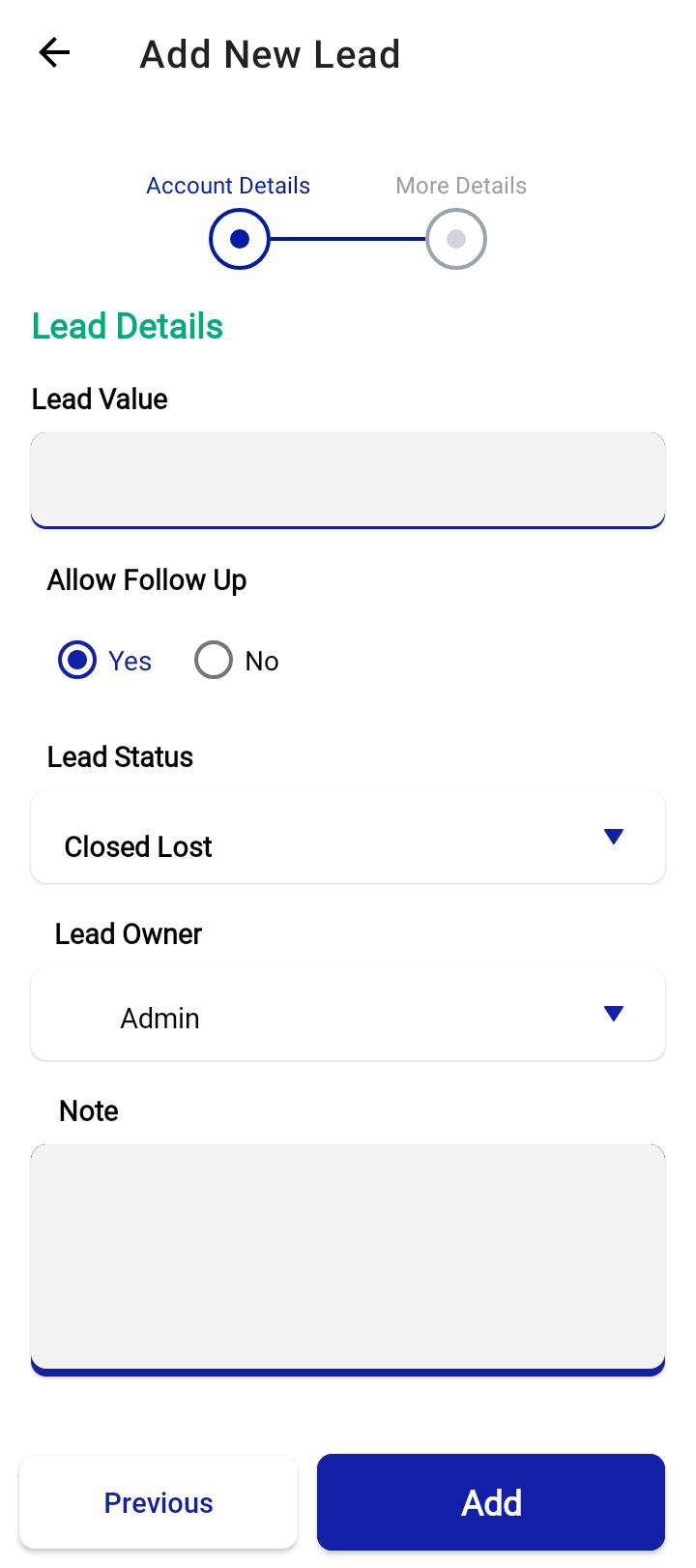
- Account Details: Select "Individual" as the lead type.
- Fill in the following details:
- Lead Name: The full name of the individual.
- Lead Email: Contact email address.
- Lead Agent: The salesperson responsible for this lead.
- Lead Source: How the lead was acquired, e.g., "Current Client."
- Lead Category: Type of lead, e.g., "B2B."
- Tap "Next" to proceed to more detailed information.
Creating a Company Lead
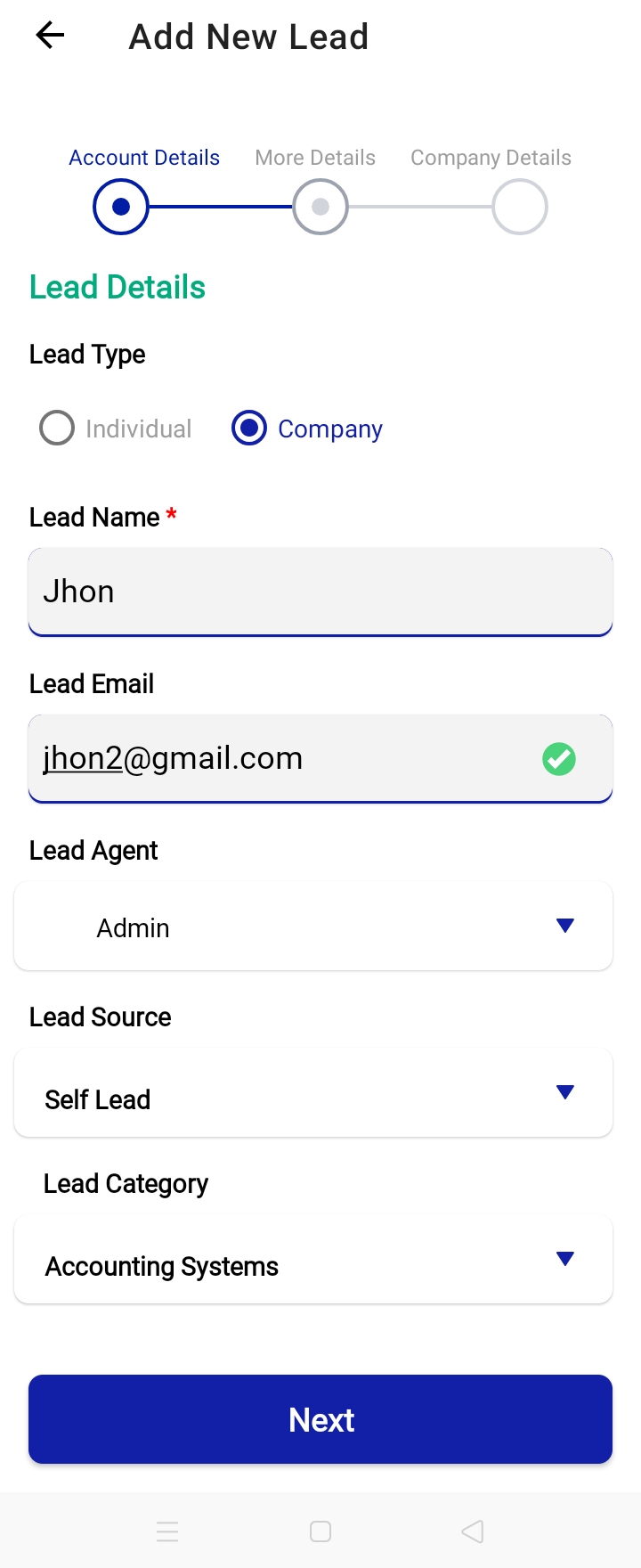
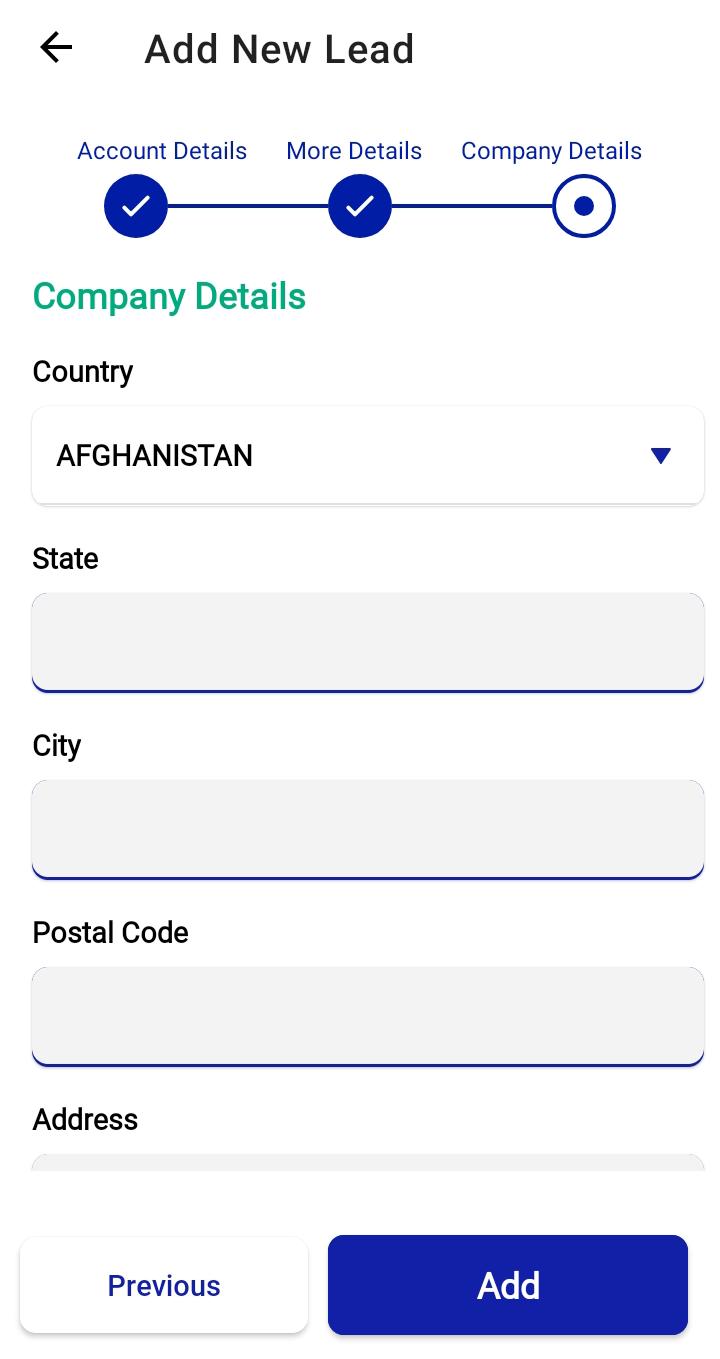
Select "Company" as the lead type and fill in similar details as for an individual, plus any additional required fields specific to company leads.
On the "More Details" page, input:
- Lead Value: Estimated potential revenue from the lead.
- Allow Follow Up: Toggle to "Yes" to enable follow-ups.
- Lead Status: Current phase of the lead, e.g., "new Lead."
Note: Add any relevant notes regarding the lead.
Tap "Add" to save the new lead.
Editing Existing Leads
To edit a lead, tap on the desired lead from the list to view their profile.
Tap the "Edit" button on the lead's profile page.
Modify the necessary fields such as Lead Name, Email, Status, etc.
After making the changes, tap the "Save" or "Update" button to apply the edits.
Conclusion
Managing leads through the CRM mobile app helps ensure no potential client goes unnoticed. By diligently tracking and updating lead information, your sales team can enhance engagement and improve the likelihood of conversion.