Clients
The Clients feature in the CRM mobile app is designed to manage customer relationships effectively by tracking and organizing client information. This feature allows users to view a list of all clients, access detailed profiles of existing clients, as well as create and edit client information.
Accessing the Clients Feature
- Open the CRM mobile app.
- Navigate to the sidebar menu (three horizontal lines icon).
- Select the "Clients" option to access the clients' section.
Viewing All Clients
- Upon accessing the Clients feature, you will see a "All Clients" button.
- Tap on it to display a list of all customers that have been converted from leads.
- You can switch between "Active" and "DeActive" clients using the toggle at the top.
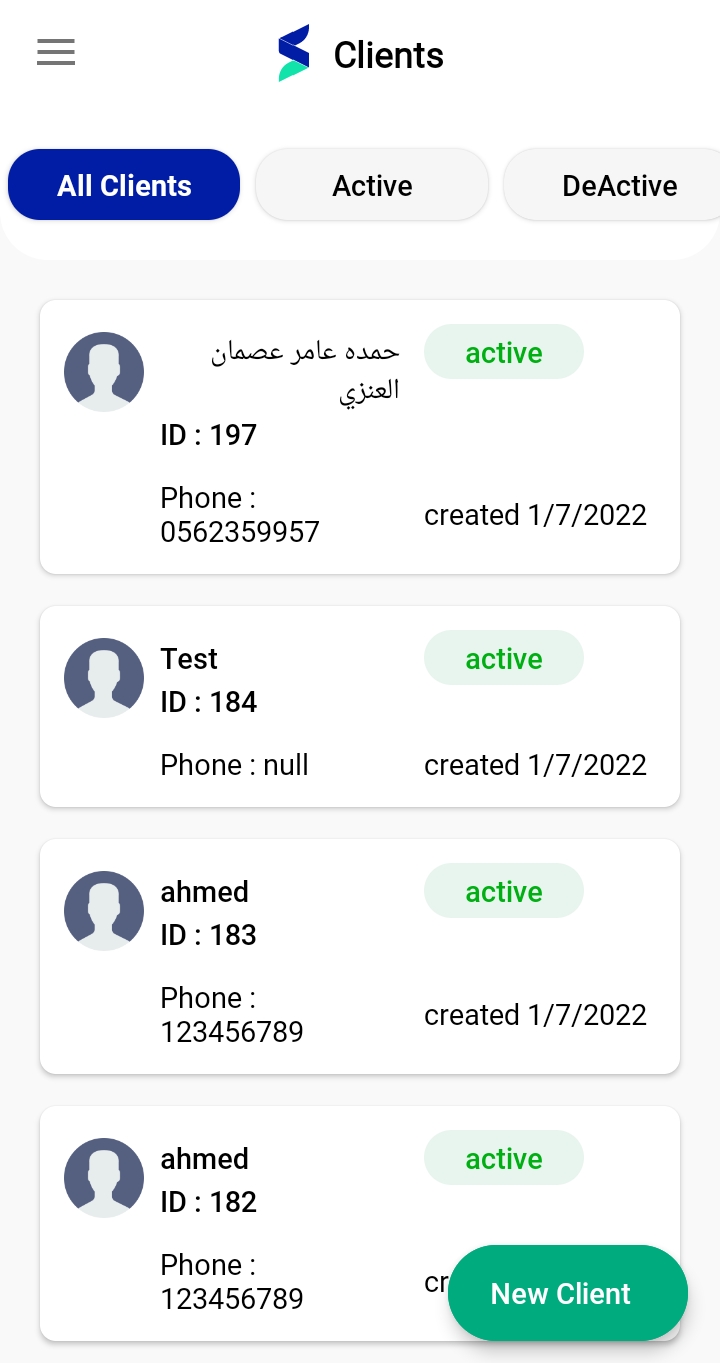
Viewing Client Details
- To view detailed information on a client, tap on a client's name from the list.
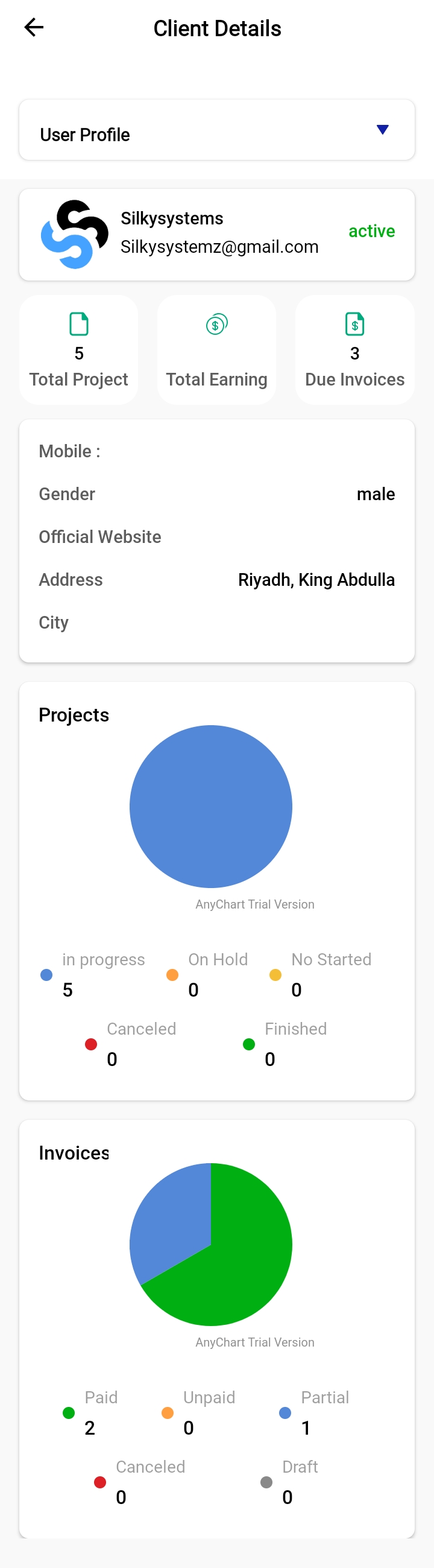
- This will bring you to the "Client Details" page, which displays:
- User Profile
- Projects associated with the client
- Payment information
- Invoices
- Material
- Credit Notes
Payments
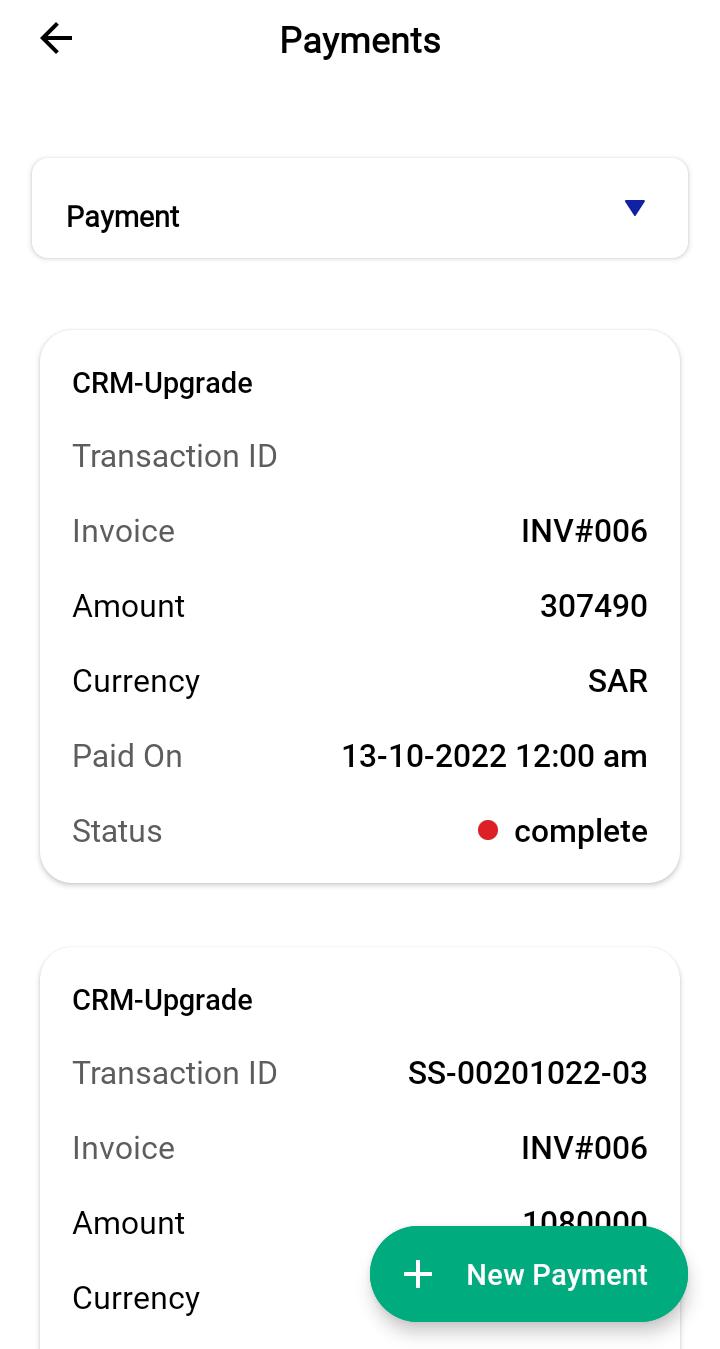
- In the "Client Details" view, select the "Payments" tab to see all transactions.
- To add a new payment, tap the "+ New Payment" button, fill out the transaction details, and confirm the addition.
Invoices
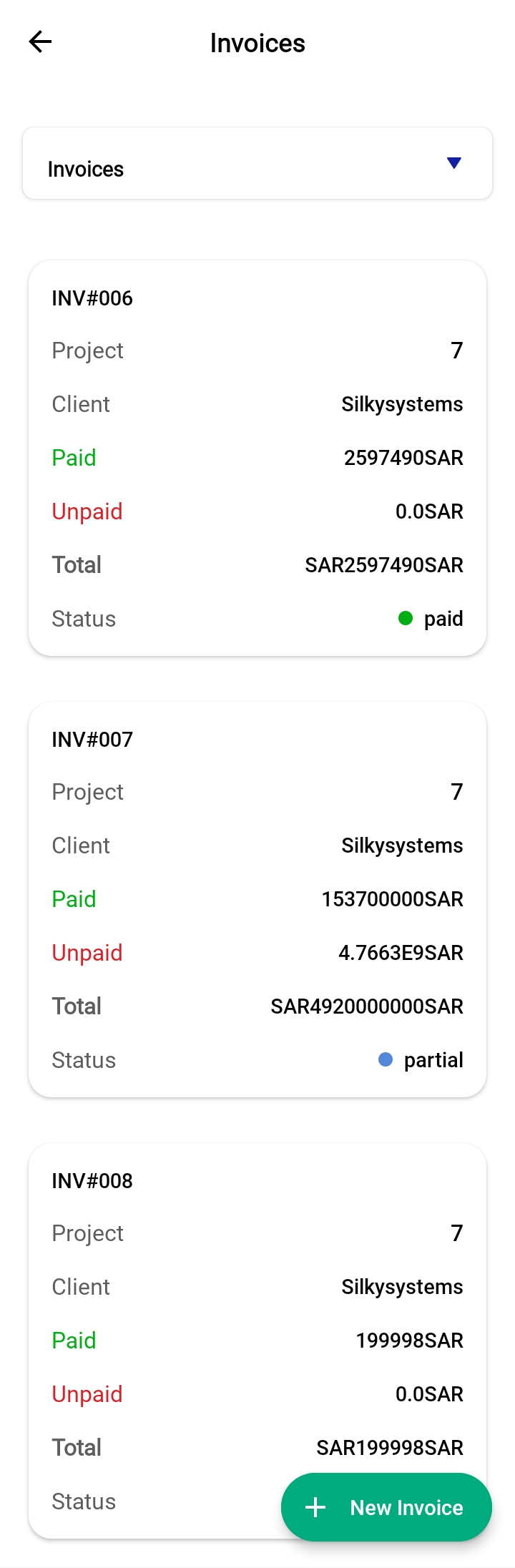
- Under the "Invoices" tab, you'll find a list of all invoices related to the client.
- The list displays invoice numbers, project names, paid and unpaid amounts, and the invoice status.
- Tap "+ New Invoice" to create a new invoice for the client.
Tracking Projects
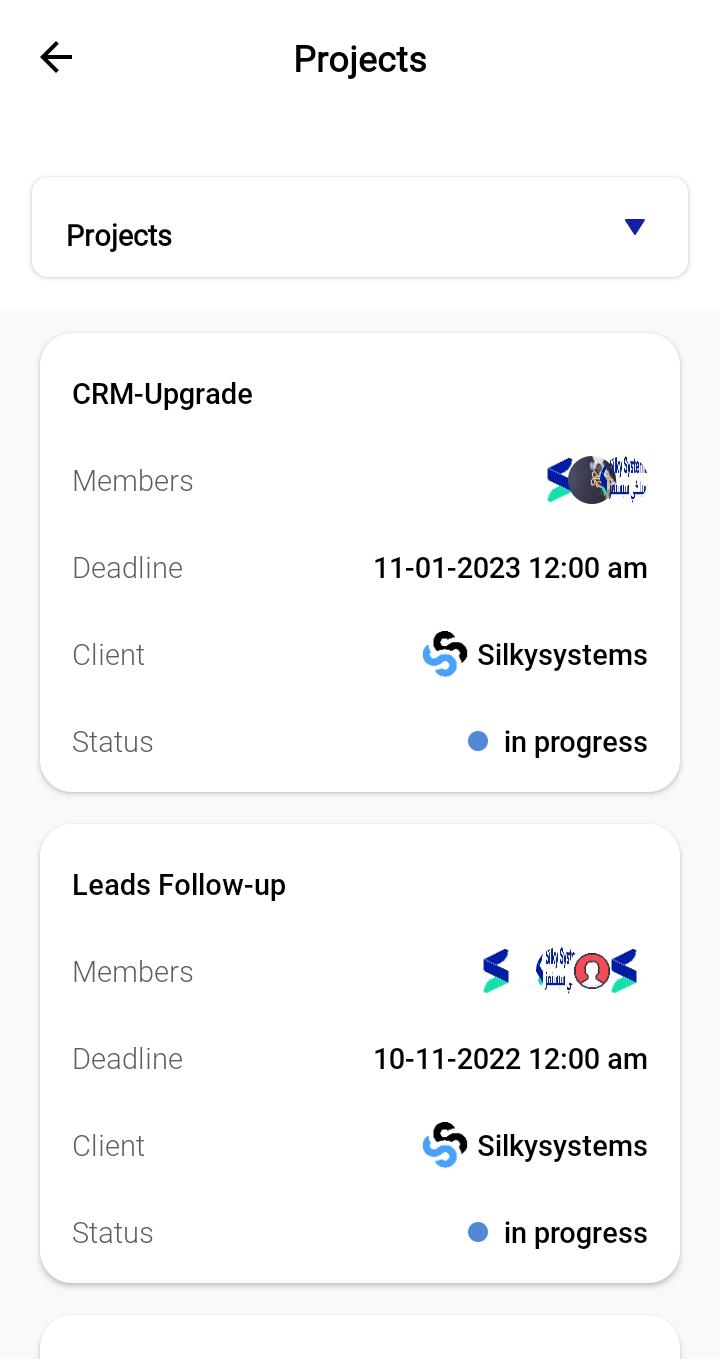
- Access the "Projects" tab within the "Client Details" to view all projects linked to the client.
- This section provides information about project members, deadlines, and current status.
Additional Client Information
In the "Client Details" page, you may also view and edit supplementary information such as:
- Material provided to or used by the client.
- Credit notes issued.
- Client’s contact details, such as address and official website.
Creating a New Client
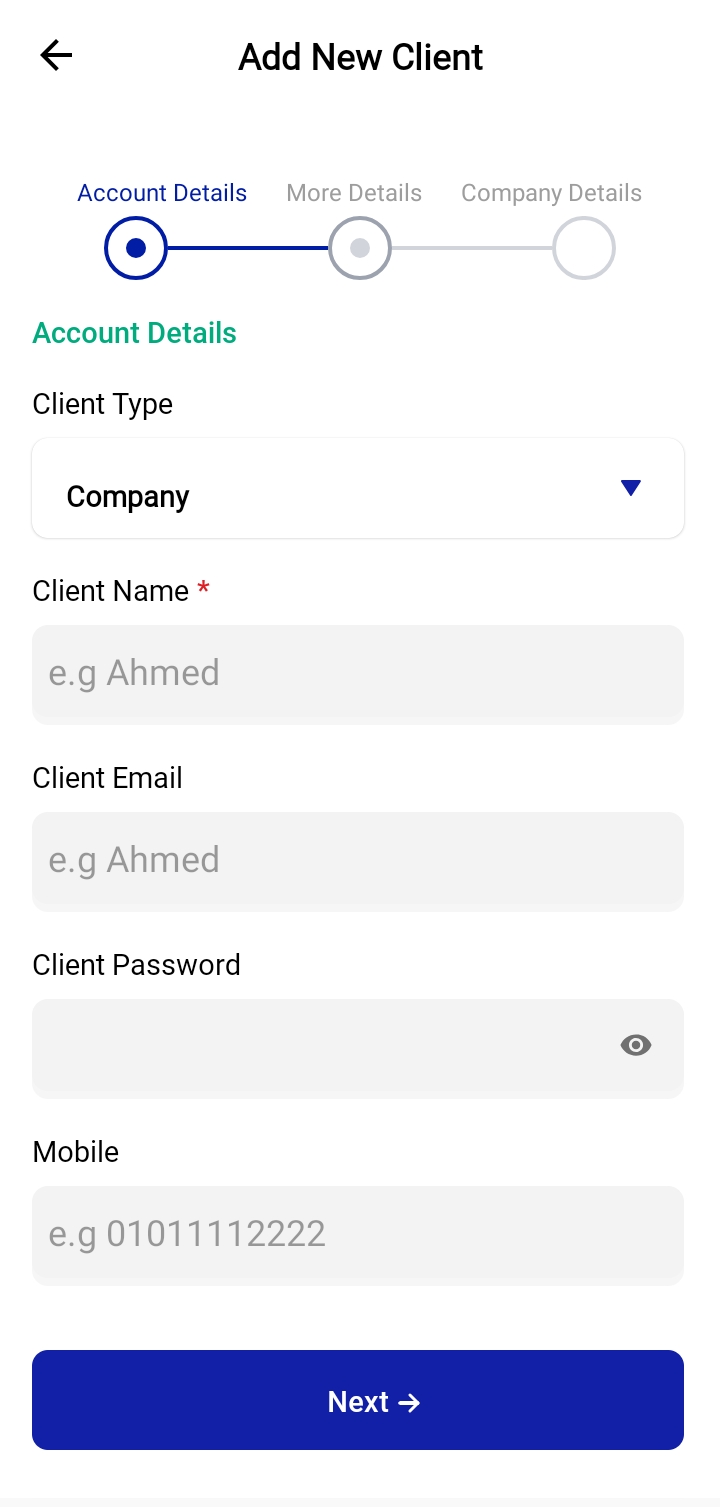
- From the main Clients screen, tap the "New Client" button.
- Fill in the required fields under "Account Details":
- Client Type (e.g., Company)
- Client Name
- Client Email
- Client Password
- Mobile Number
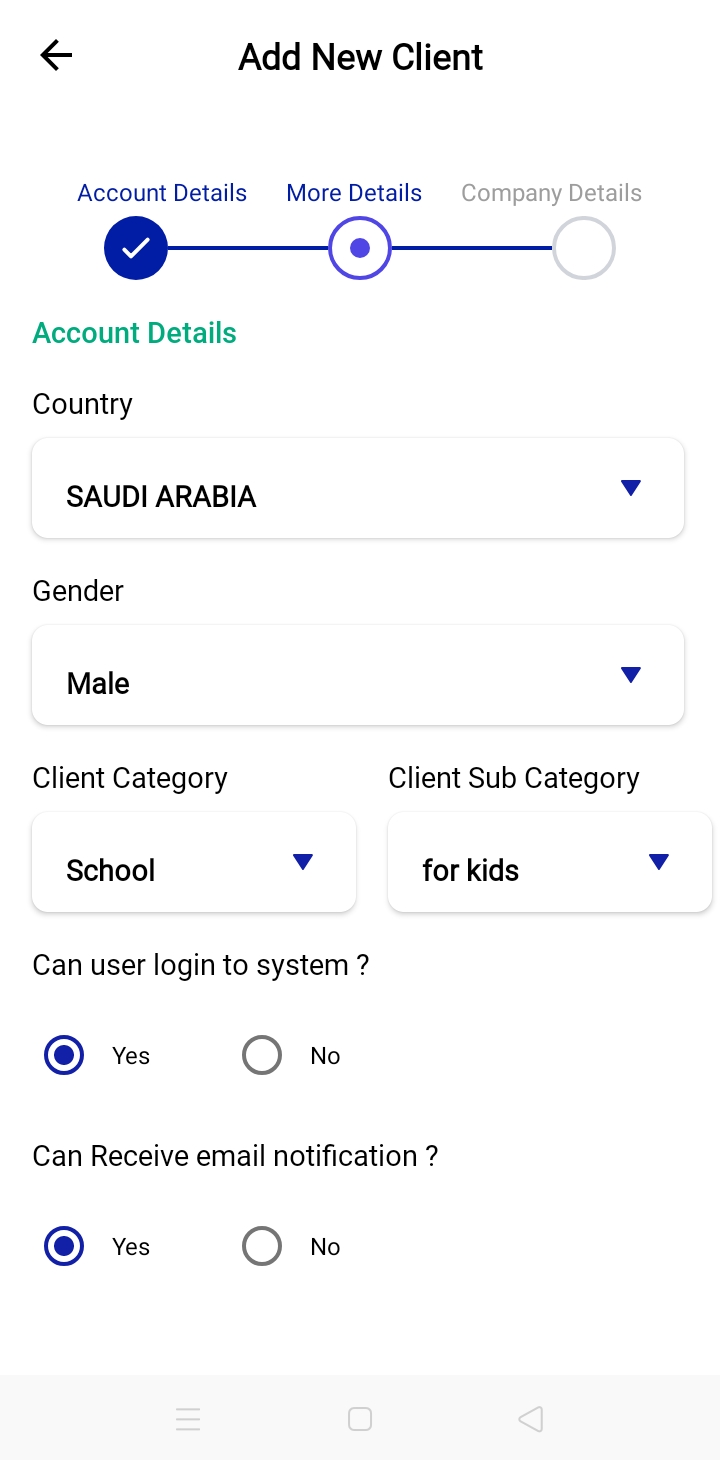
- Proceed to "More Details" where you can specify:
- Country
- Gender
- Client Category and Sub-Category
- Permissions such as user login and email notification preferences.
- Optionally, provide "Company Details" if relevant.
- Tap the "Next" button to save the new client profile.
Editing an Existing Client
- To edit client details, select a client from the list.
- Tap on the "Edit" option (usually represented by a pencil icon).
- Update the client's information as necessary across the "Account Details", "More Details", and "Company Details" tabs.
- Save changes by tapping the "
Update" or "Save" button.
Conclusion
The Clients feature is a comprehensive tool for managing customer information and interactions within the CRM mobile app. By following these steps, users can ensure they maintain detailed and up-to-date client records that enhance client management and business operations.