Invoices
Invoices Overview
An Invoice is a time-stamped commercial document that itemizes and records a transaction between a buyer and a seller. If goods or services were purchased on credit, the invoice usually specifies the terms of the deal and provides information on the available methods of payment. The CRM system allows you to create and record your Invoices. You can mange all Invoices, their details and progress by clicking on Finance -> Invoices in the left sidebar menu.
Invoices List
The Invoices list displays all of yours Invoices and their essential information such as the Invoices name, total, date, and status.
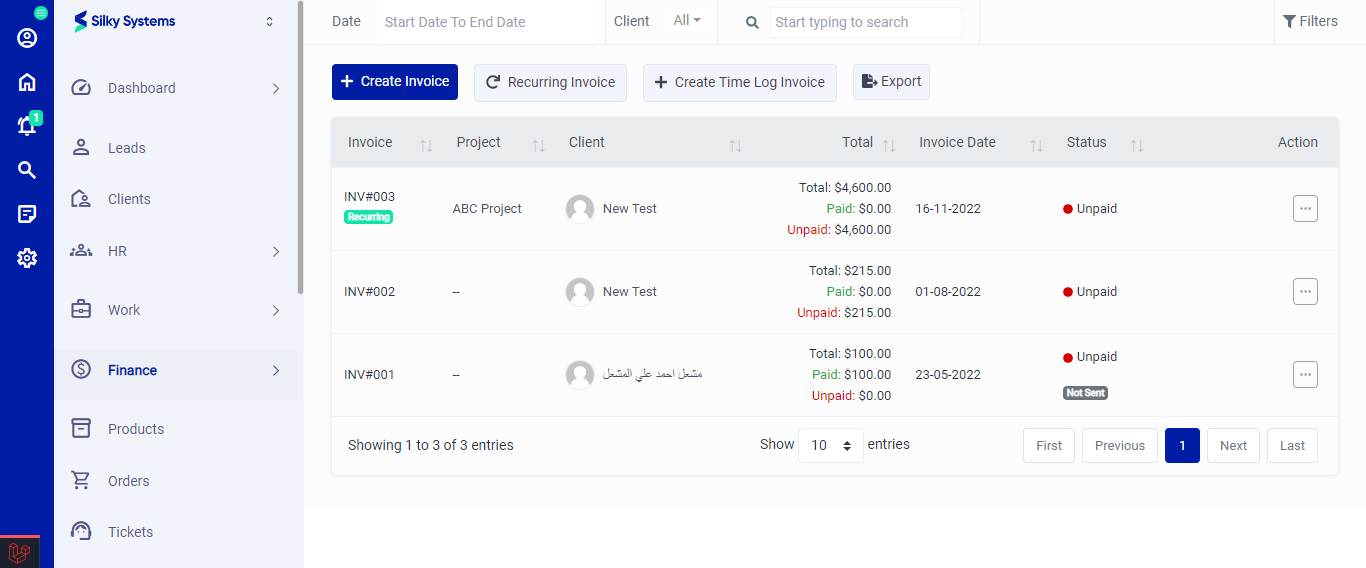 Figure.01 Invoices List
Export
You can export the list of Invoices by clicking on the Export button.
Filters
The CRM System lets you filter the Invoices records based on various factors such as date, and type. You can access more filters by clicking on Filters.
Action Column
Click on the three vertical dots to access more options in the Action column in table view. You can perform the usual View, Edit or Delete operations along with other operations.
Download: This options lets you download the Invoices locally onto your system.
Send: The send option sends the Invoice to your client.
Add Payment: The add payment option lets you add additional payment to the invoice.
Add Shipping Address: The add shipping address option lets you add or edit the shipping address in the invoice.
Copy Payment Link: The public link options creates a URL link of the payment that can be shared with anyone who is not registered on the CRM system.
Payment Reminder: The option creates a reminder to notify about the payment.
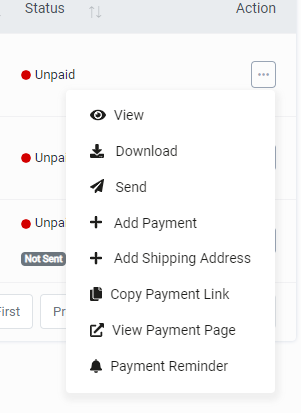 Figure.02 Invoices List
Recurring Invoices
You will see the recurring invoices in the second tab on the Invoice page. Here all recurring invoices are listed.
Create a recurring invoice by clicking on Add Recurring Invoice. On the Add Recurring Invoice Page, enter the required details on the available fields and select the frequency.
The recurring invoice will be created automatically based on your selected option of Daily, Weekly, Monthly, or Yearly. You can choose a custom option and enter your preferred frequency.
The recurring invoice will be generated as a draft, and you should add your payment details manually. When the invoice is generated, it will be listed under the invoice tab. Editing your recurring invoice template won't affect the previously generated invoice based on the old template.
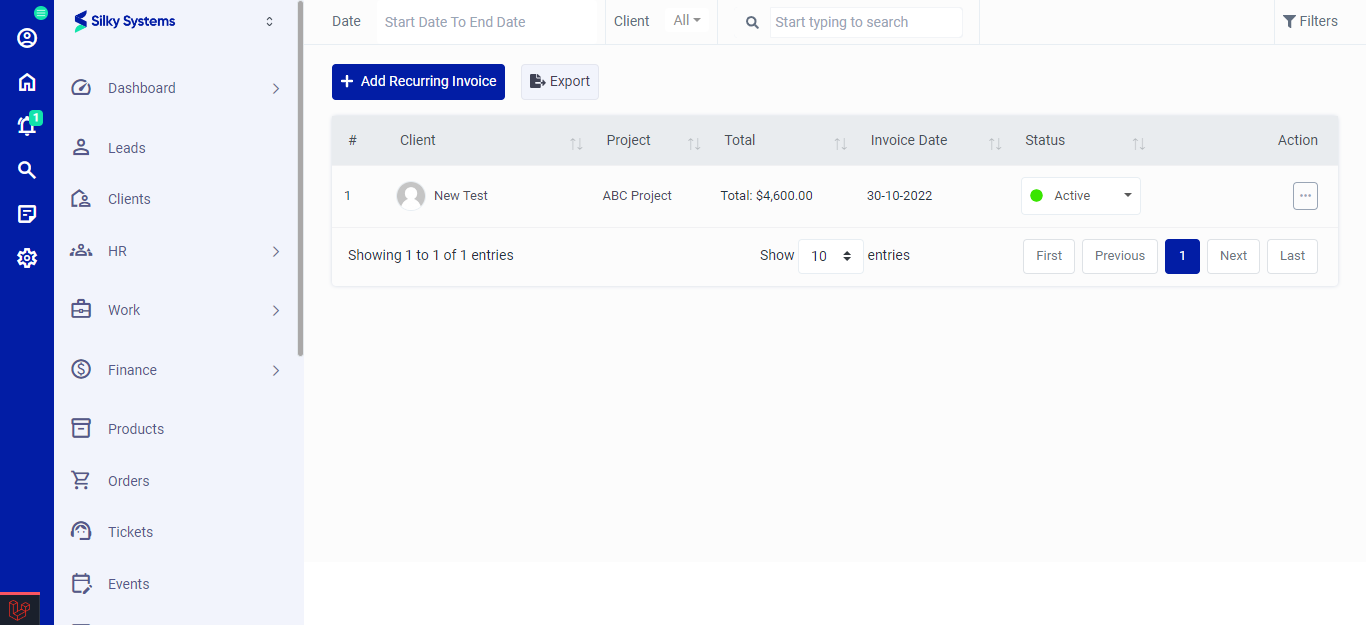 Figure.03 Invoices List
Add Invoices
To create an invoice, click on the New Invoice button at the top of the Invoices page and fill out the fields. Although some fields are not required, they make it easier to track your reports.
When creating an invoice, you need to enter the recipient of the invoice through the "client" option and fill in other mandatory fields like the invoice date, due date, and number.
After creating an invoice, you can send it at that time or save it and send it later from the invoices page.
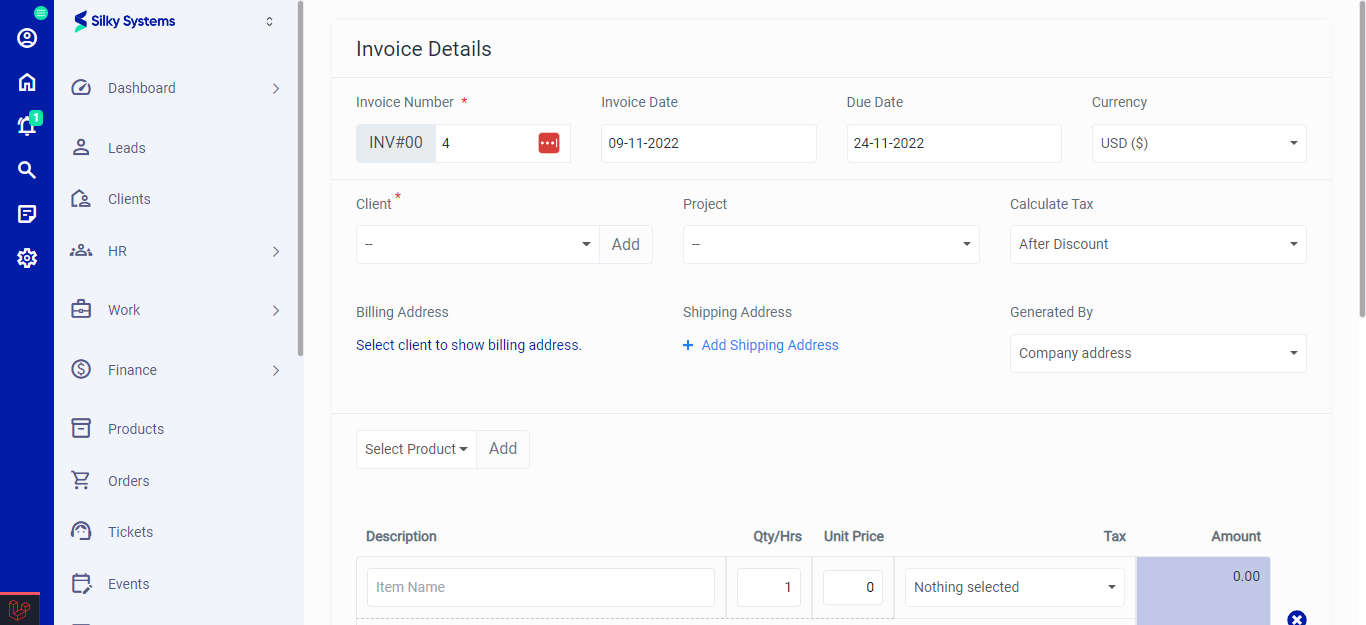 Figure.04 Add Invoices
View Invoices
You can view all the Invoices details by clicking on the view option under the Action Column.
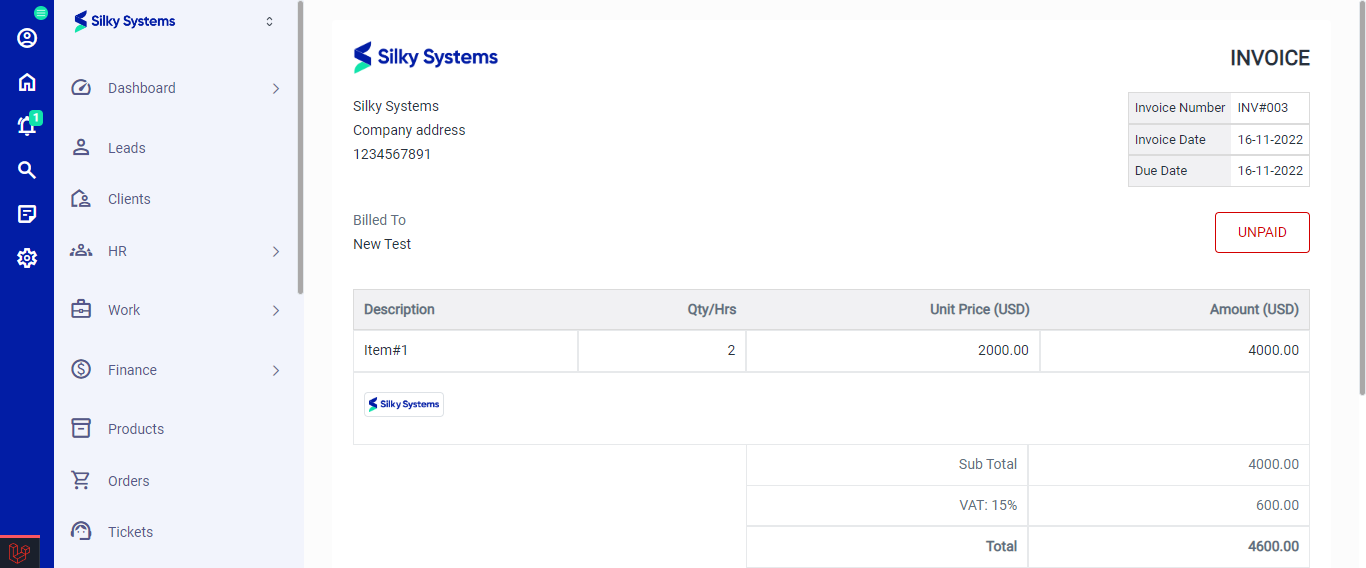 Figure.06 View Invoices