Proposals
Proposals Overview
A Proposal is sent from a supplier to a potential client for the purpose of winning a specific project. It is a written document and it can either be requested by the client or sent unsolicited. Proposals are for Leads. If you want to create for existing clients, then create Estimate. The CRM system allows you to create and record your Proposals between you and your lead. You can mange all Proposals, their details and progress by clicking on Finance -> Proposals in the left sidebar menu.
Proposals List
The Proposals list displays all of yours Proposals and their essential information such as the Proposals name, total, date, valid date, and status.
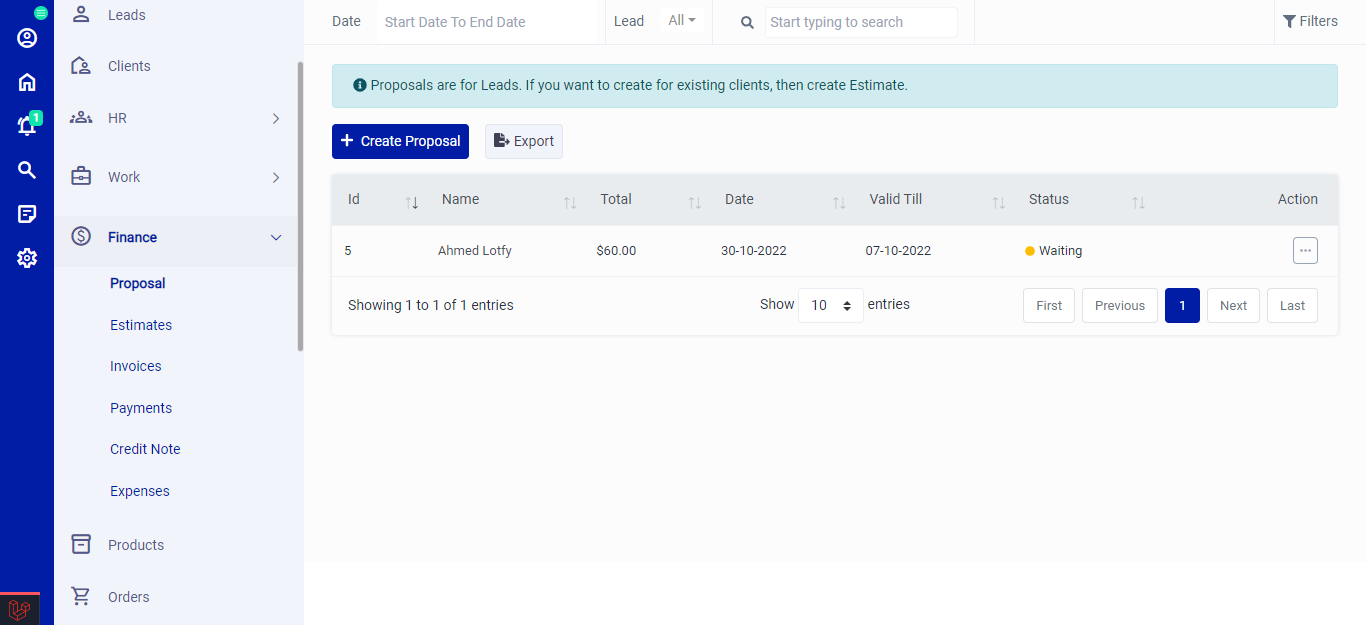 Figure.01 Proposals List
Export
You can export the list of Proposals by clicking on the Export button.
Filters
The CRM System lets you filter the Proposals records based on various factors such as date, and type. You can access more filters by clicking on Filters.
Action Column
Click on the three vertical dots to access more options in the Action column in table view. You can perform the usual View, Edit or Delete operations along with other operations.
Public Link: The public link options creates a URL link of the Proposals that can be shared with anyone who is not registered on the CRM system.
Download: This options lets you download the Proposals locally onto your system.
Send: The send option sends the proposal to your lead.
Create Invoice: The Create Invoice option lets you create an invoice for the proposal.
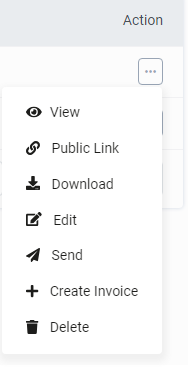 Figure.01 Proposals List
Add Proposals
To create a new Proposals, click on Create Proposal. Select the appropriate Proposal type, if a Proposals is a company then select Company if its an individual then select Individual. The form fields will change accordingly. Fill in all the required details and click save.
 Figure.04 Add Proposals
Edit Proposals
You can edit all the Proposals details by clicking on the edit option under the Action Column.
View Proposals
You can view all the Proposals details by clicking on the view option under the Action Column.
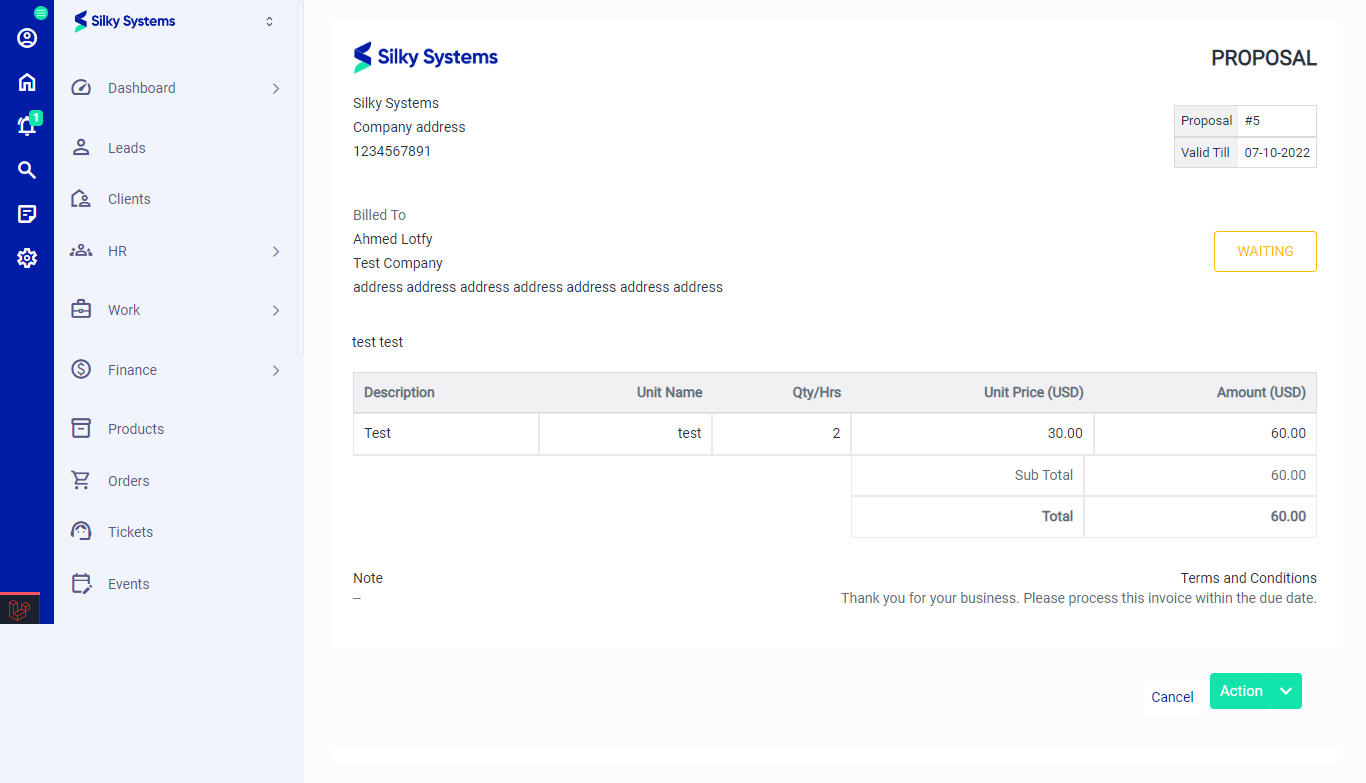 Figure.06 View Proposals