Orders
Overview
The Orders feature in the Silky Systems CRM allows users to view all orders associated with tenants. It provides a detailed list of orders, including information such as order number, tenant name, total amount, order date, and payment status. This feature enables users to filter, search, and export order data for streamlined financial management and customer service.
Key Features:
- View a list of all orders
- Filter orders by date and tenant
- Sort and search for specific orders
- Export order data
- Track payment status (Paid/Unpaid)
- View detailed order information
Accessing the Orders Feature
- Log in to the Silky Systems CRM.
- From the main navigation menu on the left, click on Orders (represented by a shopping cart icon).
Orders List View
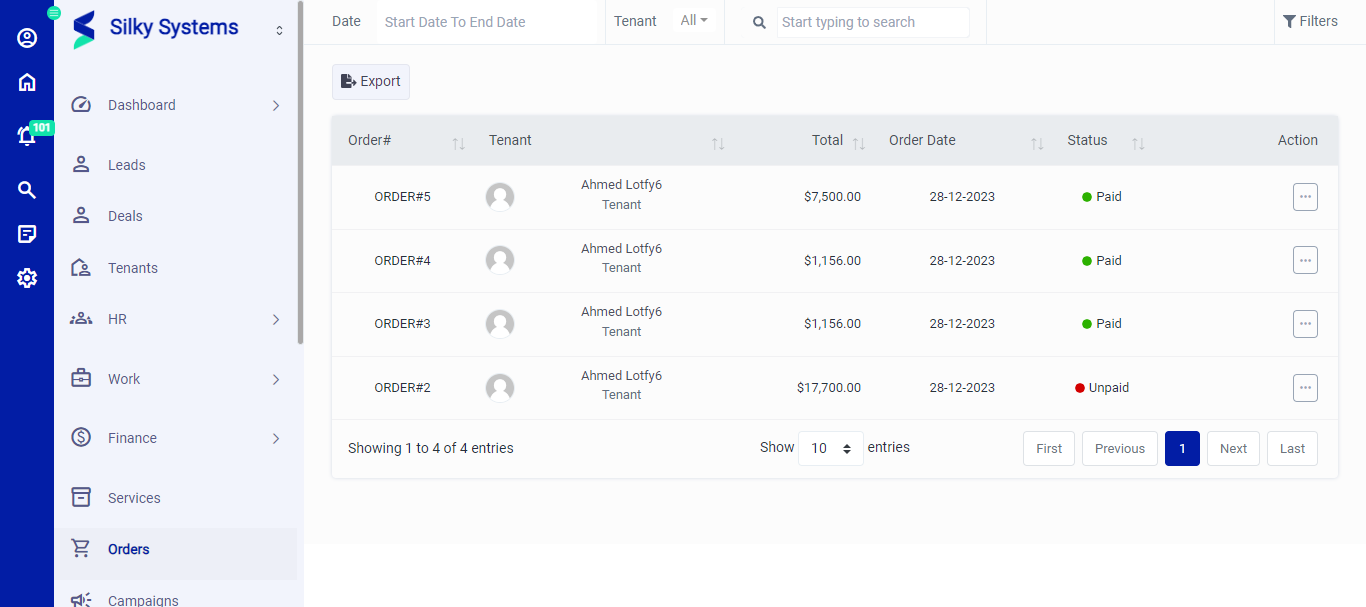 Figure.01 Order List
When accessing the Orders section, a list view displays all orders, showing the following details:
| Column | Description |
|---|---|
| Order# | The unique identifier for each order. |
| Tenant | The name of the tenant associated with the order. |
| Total | The total monetary amount of the order. |
| Order Date | The date when the order was placed. |
| Status | The payment status of the order (Paid/Unpaid). |
| Action | Additional options to manage the order (e.g., view details). |
Search and Filter Orders
- Search: Use the search bar at the top-right corner of the Orders page to quickly locate a specific order by typing keywords (e.g., tenant name, order number).
- Filters: Click on the Filters icon at the top-right to filter orders by:
- Date Range: Set a start and end date to view orders within a specific period.
- Tenant: Select a tenant from the dropdown menu to view orders associated with that tenant only.
Exporting Orders
Click on the Export button to download a CSV file containing the current list of orders. This can be useful for reporting or analysis outside the CRM system.
Viewing Order Details
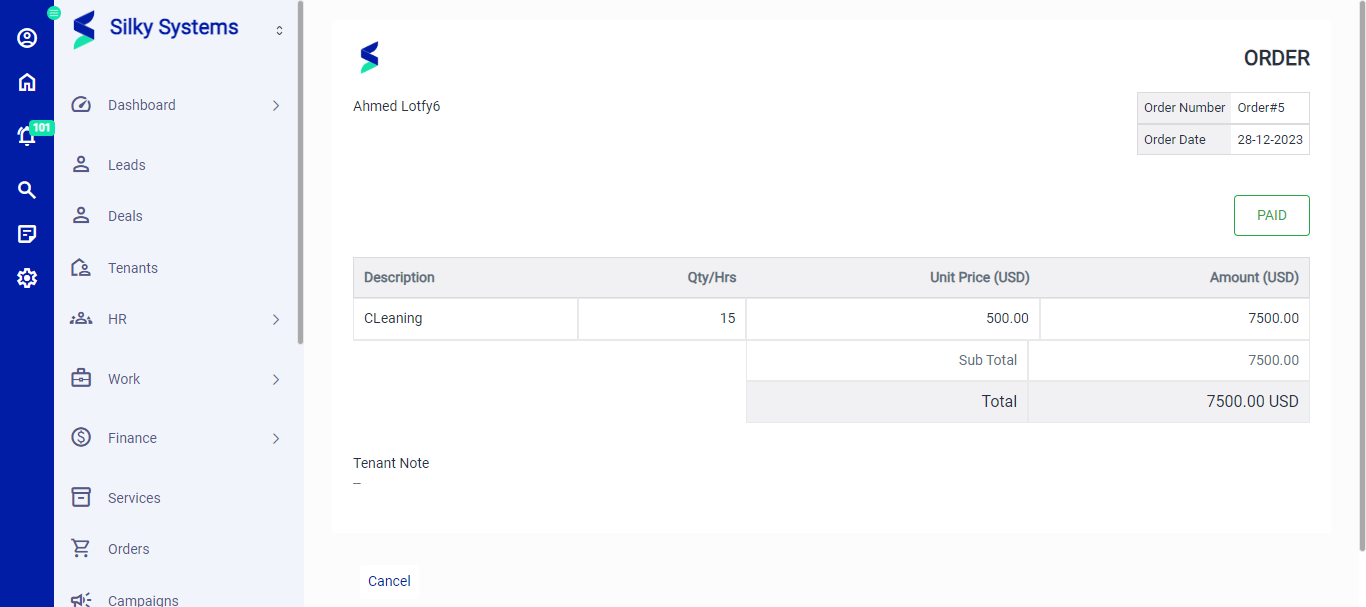 Figure.02 Order View
To see more information about a specific order:
- In the Orders list, click the Action menu (three dots) on the right side of the order row.
- Select View Details.
This opens the Order Details page, which provides the following information:
- Order Summary: Displays the order number and date.
- Tenant Information: The name of the tenant linked to the order.
- Order Items: A detailed breakdown of the order, including:
- Description: Name of the product or service.
- Qty/Hrs: Quantity or hours associated with the item.
- Unit Price (USD): Price per unit or hour.
- Amount (USD): Total amount per line item.
- Totals:
- Sub Total: Sum of all items before taxes or discounts.
- Total: Final amount to be paid.
- Payment Status: The current payment status, shown as Paid (green) or Unpaid (red).
- Tenant Note: Any additional notes related to the order (if available).
To return to the Orders list, click Cancel at the bottom of the Order Details page.
This documentation provides a comprehensive guide to navigating and utilizing the Orders feature in the Silky Systems CRM.