Employee
Employee Overview
An Employees is a worker hired by an employer to do a specific job. Employers control how employees are paid, when employees work, and how employees work. In exchange, employees get benefits that employees don't. You can mange all employees, their details and progress by clicking on HR -> Employee in the left sidebar menu.
Employee List
The employee list displays all the Employee and their essential information such as the employee name, email, role, and status.
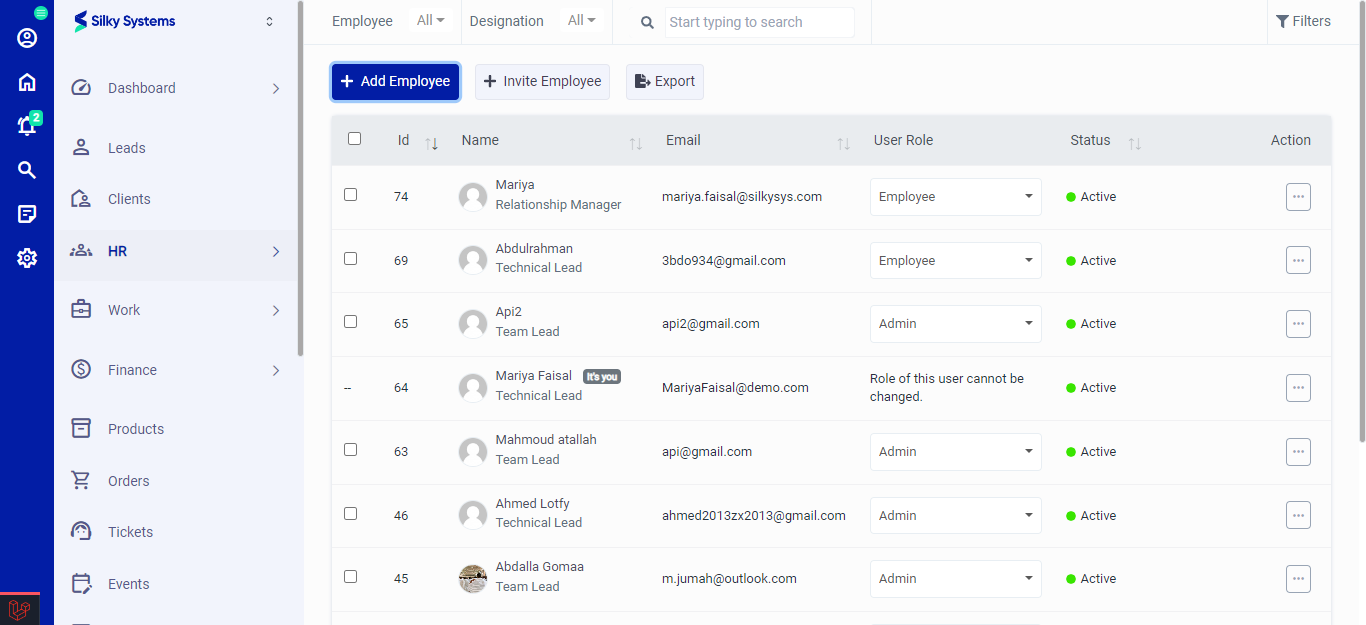 Figure.01 Employee List
User Role
The role of a user defines its permissions. Different permissions are granted based on different user roles. You can manage roles from the Settings.
Export
You can export the list of Employees by clicking on the Export button.
Filters
The CRM System lets you filter the Employee records based on various factors such as date, and type. You can access more filters by clicking on Filters.
Invite Employee
Click on the Invite Employee button to create an invitation for your employees. You can invite employees by email or by creating a link.
Add employee
To create a new employee, click on Add employee. Assign a designation and department, fill in all the required details and click save.
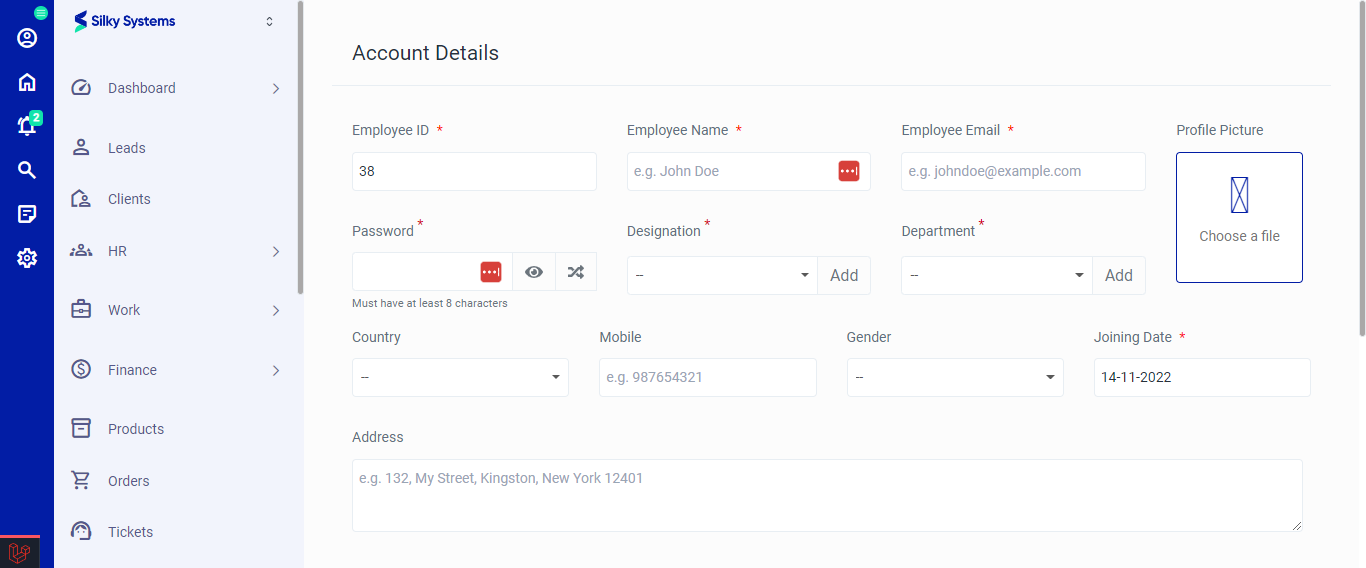 Figure.02 Add employee
Edit employee
You can edit all the employee details by clicking on the edit option under the Action Column.
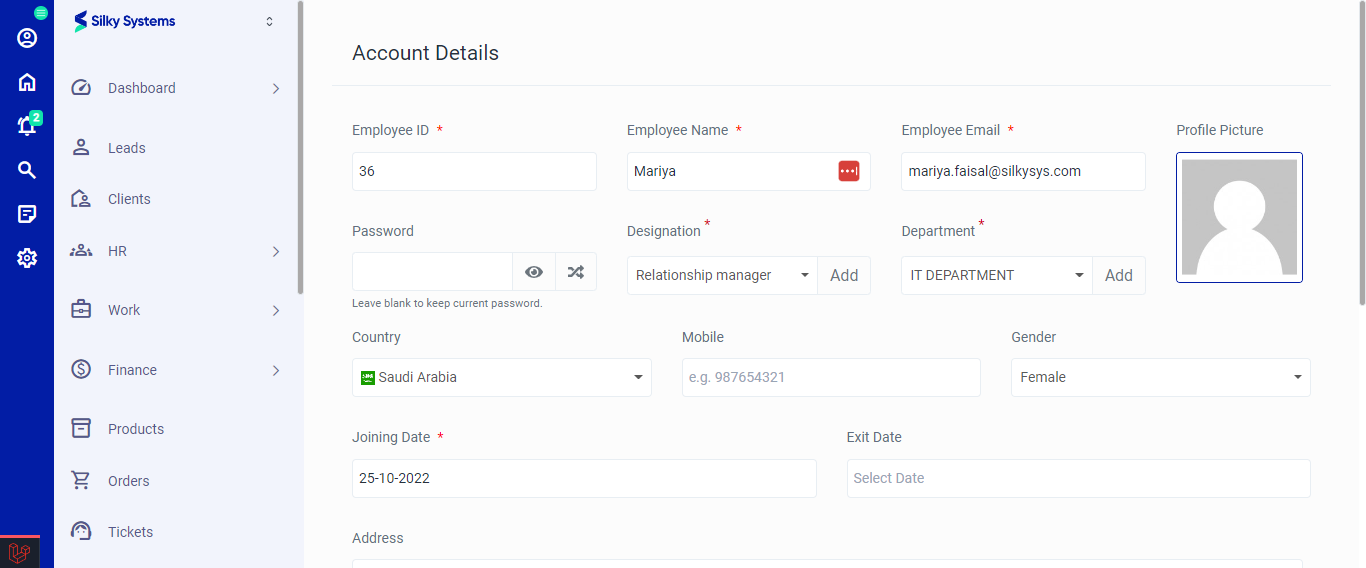 Figure.03 Edit employee
View employee
You can view all the employee details by clicking on the view option under the Action Column.
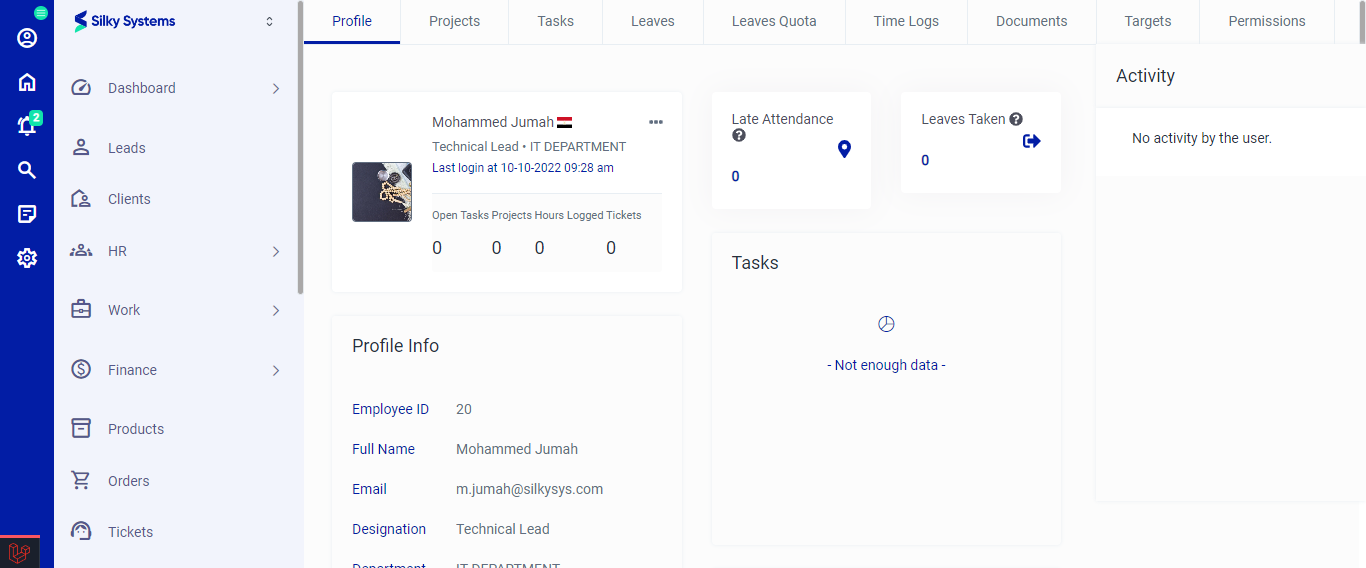 Figure.04 View employee
- Profile: This section shows the profile and general overview details of the employee as well as activities, attendance and leaves taken.
- Projects: This sections shows the record of Projects that the employee is working on or has worked on in the past. You can add new Projects by clicking on Add Projects.
- Tasks: This sections shows the record of Tasks that the employee is working on or has worked on in the past. You can add new Tasks by clicking on Add Tasks.
- Leaves: This sections shows the record of Leaves that the employee has taken in the past. You can add new Leaves by clicking on Assign Leaves.
- Leaves Quota: This sections shows the assigned leave quota that an employee can take. You can assign new Leaves Quota by clicking on Manage.
- Time Logs: This sections shows the record of Time Logs of the employee. You can add new Time Logs by clicking on Log Time.
- Documents: All the documents related to the employee are stored here. You can add new Documents by clicking on Add Files.
- Targets: Targets are set milestones or goals that you can assign for an employee. This sections shows the record of those Targets. You can add new Targets by clicking on Set Targets. Click on Export to export the list of all Targets.
- Permissions: Permissions are set rules for a role. You can not change the permissions for an Admin role.