Google Meet
Overview
The Google Meet Plugin enables users to schedule and manage Google Meet meetings directly from within the application interface. This feature streamlines meeting scheduling by integrating Google Meet, allowing users to define meeting details, assign participants (such as employees, tenants, and leads), and configure reminders without needing to switch to an external calendar or video conferencing app.
This integration is particularly useful for organizations that regularly conduct virtual meetings, as it reduces the time and steps required to set up and notify participants. Additionally, it provides control over meeting access and reminders, enhancing overall communication and collaboration within the team and with external clients or stakeholders.
To Access Google Meet:
- Go to the left sidebar.
- Expand the Plugins section.
- Select Google Meet.
Creating a Google Meet Meeting
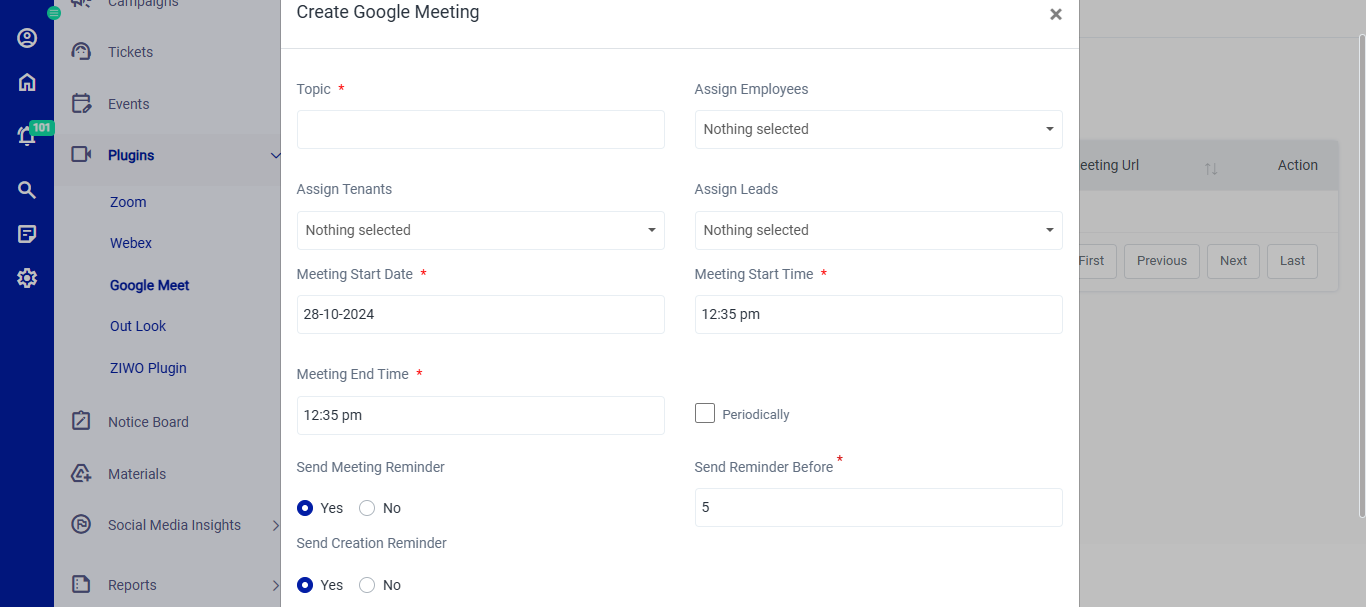 Figure.01 Create Meeting
To create a Google Meet meeting, click on Create Meeting and complete the fields in the Create Google Meeting form.
Steps:
Topic (Required):
Enter the meeting topic or purpose. This is the title that will appear for the meeting.Assign Participants:
- Assign Employees: Use the dropdown to add employees who will attend the meeting.
- Assign Leads: Choose leads from the dropdown to invite them to the meeting. Useful for client or sales-related meetings.
- Assign Tenants: Select tenants if this meeting involves specific tenant groups.
Set Date and Time:
- Meeting Start Date (Required): Select the meeting’s start date.
- Meeting Start Time (Required): Enter the meeting start time.
- Meeting End Time (Optional): Define an end time for the meeting. Leave blank if an end time is not needed.
Periodic Meetings (Optional):
Check the Periodically box to set up a recurring meeting (e.g., daily, weekly, or monthly).Reminders:
- Send Meeting Reminder: Choose Yes to send reminders to participants. If set to No, reminders will not be sent.
- Send Reminder Before (Required if reminders are enabled): Set the number of minutes before the meeting start time when the reminder should be sent.
- Send Creation Reminder: Select Yes to send an immediate notification upon meeting creation.
Save Meeting:
Click Create to schedule the meeting, or Cancel to discard.
Using these settings, the meeting will be created with a Google Meet link, and participants will be reminded as configured.